

A good café menu has to do two jobs at once: look like your place, and stay readable when it's printed on A4 and propped up on a counter. In this walkthrough we use Design Expert in AutoClaw to create a one-page brunch menu for a fictional café, "Sunday Fern," then update the prices and add a footer line in the same task. You end up with a print-ready PNG and an editable SVG you can keep changing.
What you'll make: a vertical A4 menu with three sections and twelve items, delivered as a 300 DPI PNG (2480 × 3508 px) and an editable SVG source file, plus a second version with your edits.
Watch the demo
Step 1: Start a new task and choose Design
Open AutoClaw, click New task, and select Design above the input box. Design Expert is tuned for layout and visual work, so it plans the page and checks the files it produces before handing them back.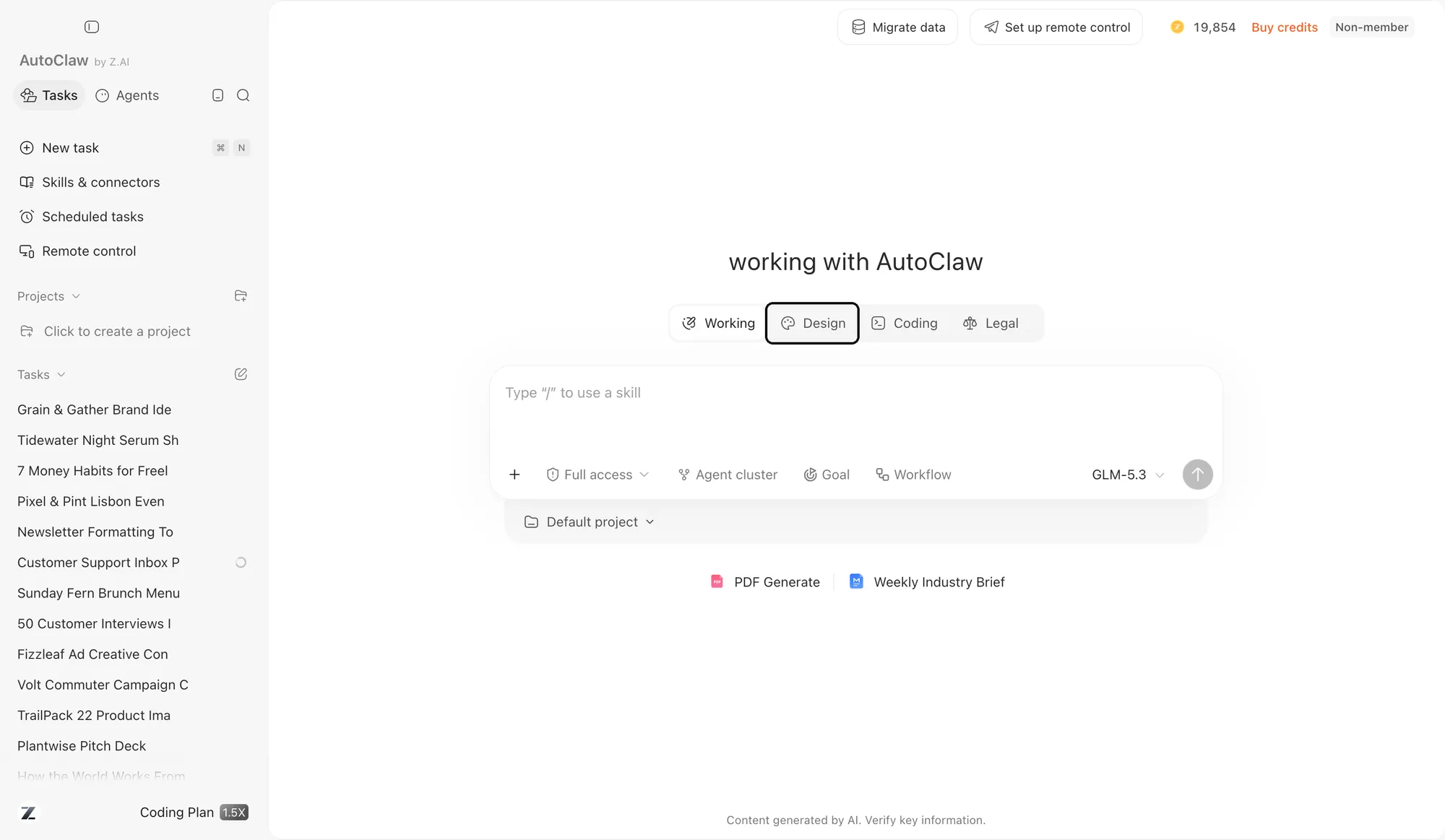
Choose Design above the input box.
Step 2: Pick a model
Open the model menu at the bottom right of the input box. This walkthrough uses GLM-5.3-Flash; the label on the right shows how much each model draws on your credits. You can switch models later in the same task.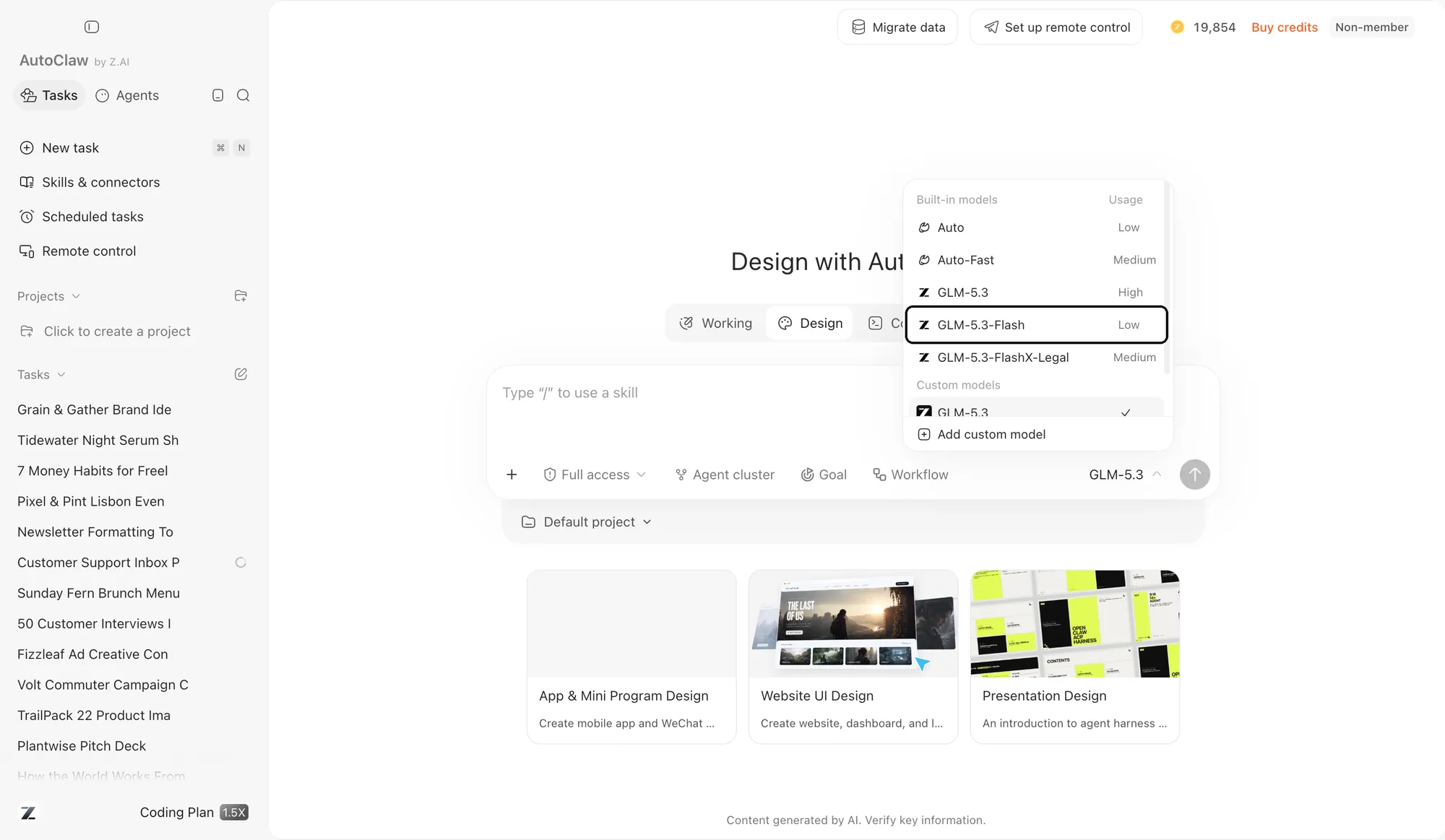
The model menu. This run uses GLM-5.3-Flash.
Step 3: Describe the menu and the files you need
A useful brief covers three things: what goes on the page, how it should look, and what you want to receive. Here's the prompt we sent:
Design a vertical A4 menu for a small neighborhood brunch café called "Sunday Fern".
Three sections: Coffee, Brunch Plates, Fresh Juices — four items each. For every item include the name, a one-line description and a price in USD. Use realistic sample items and prices so I can swap them later.
Style: off-white textured paper, deep green ink, a clean serif for headings and a readable sans for body text, small hand-drawn botanical line illustrations, generous margins.
Make sure each price lines up clearly with its item and nothing is crowded at A4 print size.
Deliver a PNG for viewing and an editable SVG source file.
Asking for sample items and prices gives you a complete layout to react to, and asking for an SVG means you can edit text and prices later without starting over. Click Send when you're ready.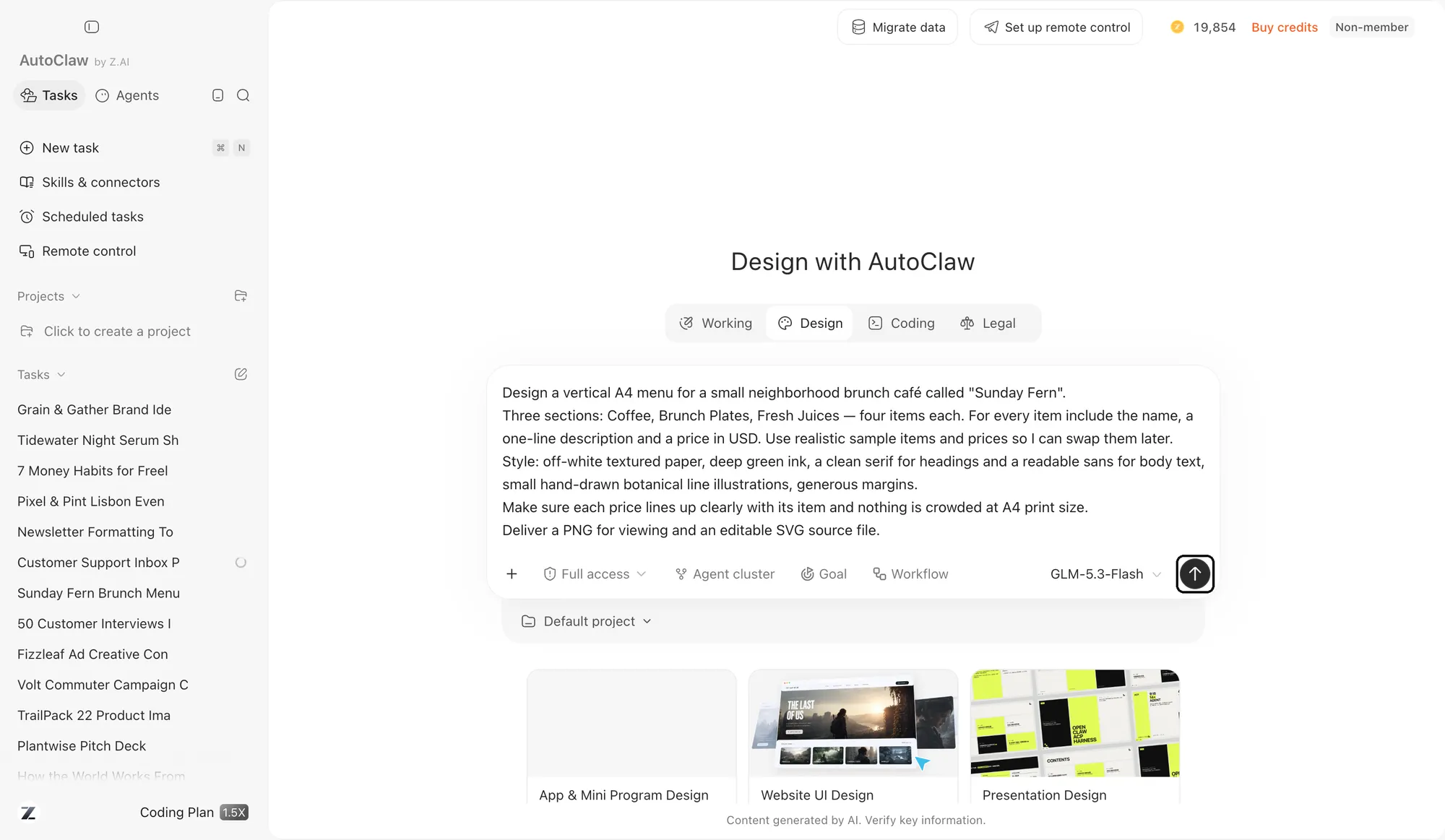
 Paste the brief and click Send.
Step 4: Open the menu in the preview area
When the task finishes, the answer lists both files. Click the PNG link to open it in the preview area on the right; use the download button at the top of the preview to save the original.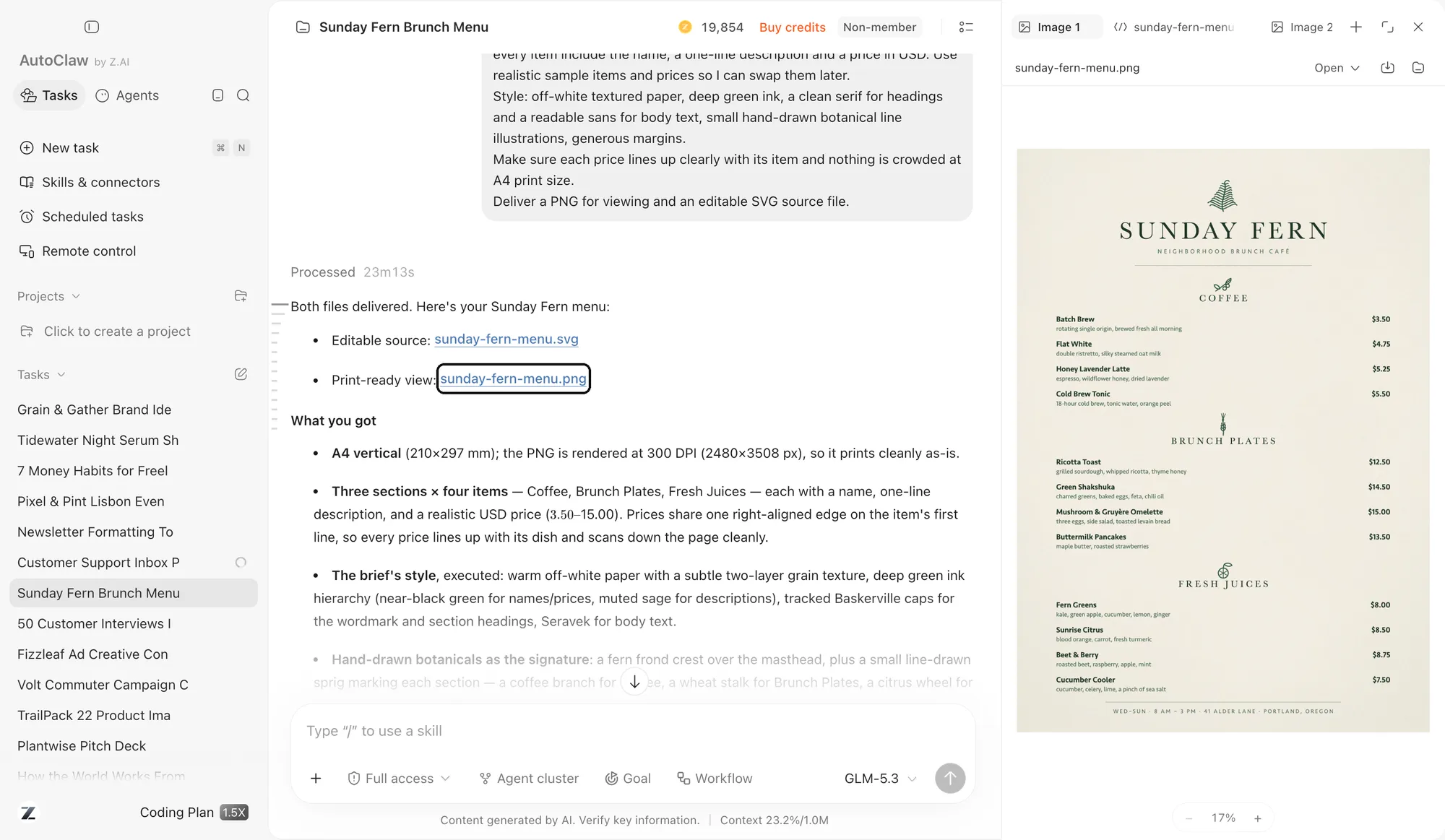
Click the PNG to open it in the preview area.
The first version uses tracked serif capitals for the café name and section titles, a sans for the dishes, and a small line illustration for each section: a coffee branch, a wheat stalk, and a citrus wheel. Every price sits on one right-aligned edge, so the columns read cleanly at print size.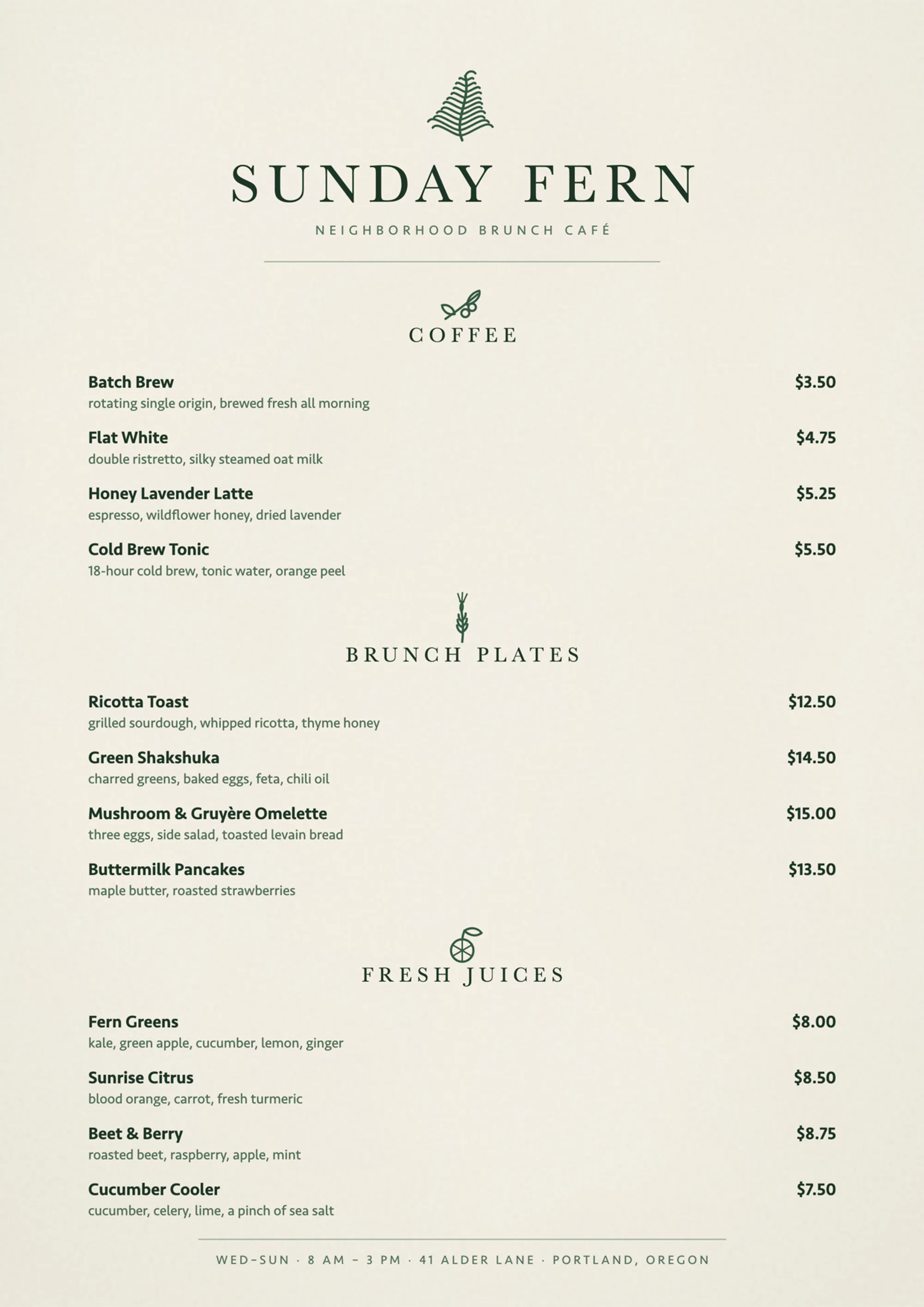
Version 1 of the Sunday Fern menu.
Step 5: Ask for changes in the same task
Keep editing in the same task so the agent works from the files it already made. Say exactly what should change and what should stay:
Update the SVG: change the three Coffee prices to $4.50, $5.25 and $5.75, make all prices slightly larger so they read well when printed, and add a footer line "Oat and almond milk available · Ask us about gluten-free options". Keep everything else. Save as "sunday-fern-menu-v2.svg" and export a matching PNG.
Send the edit request in the same task.
AutoClaw saved the update as a new pair of files, so version 1 is still there if you want to compare. One detail worth noticing: the Coffee section has four drinks but the request gave three prices, so the agent applied them to the first three, left Cold Brew Tonic at $5.50, and said so in its reply. If you meant something else, reply in the same task and it will adjust.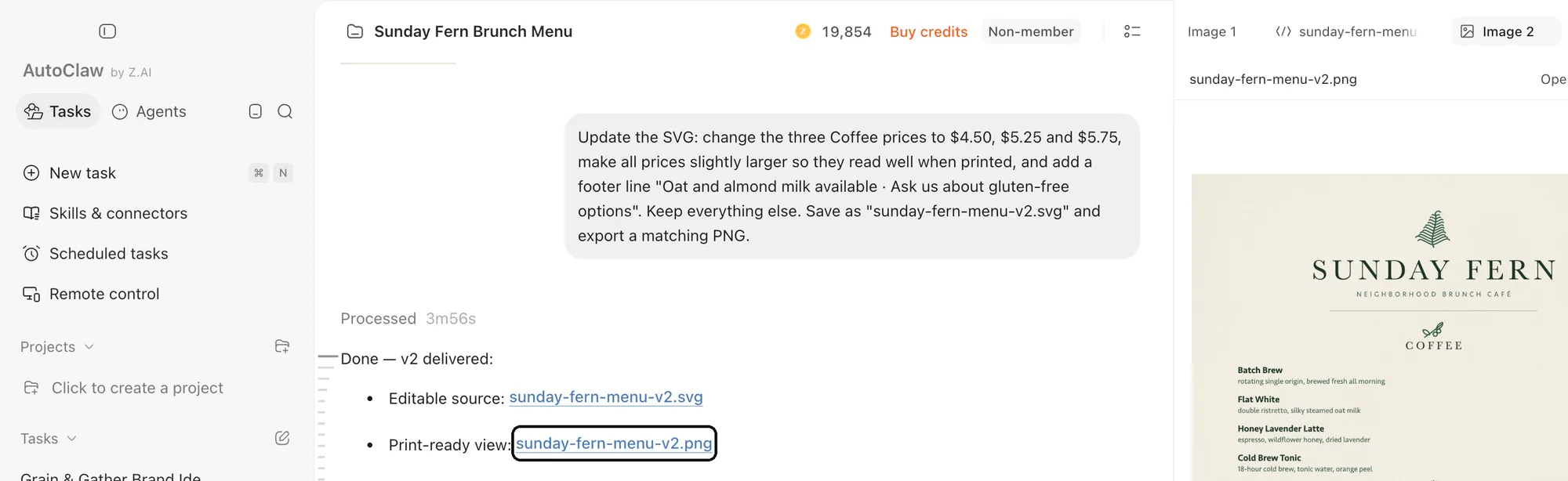
Version 2 is delivered as a new SVG and PNG.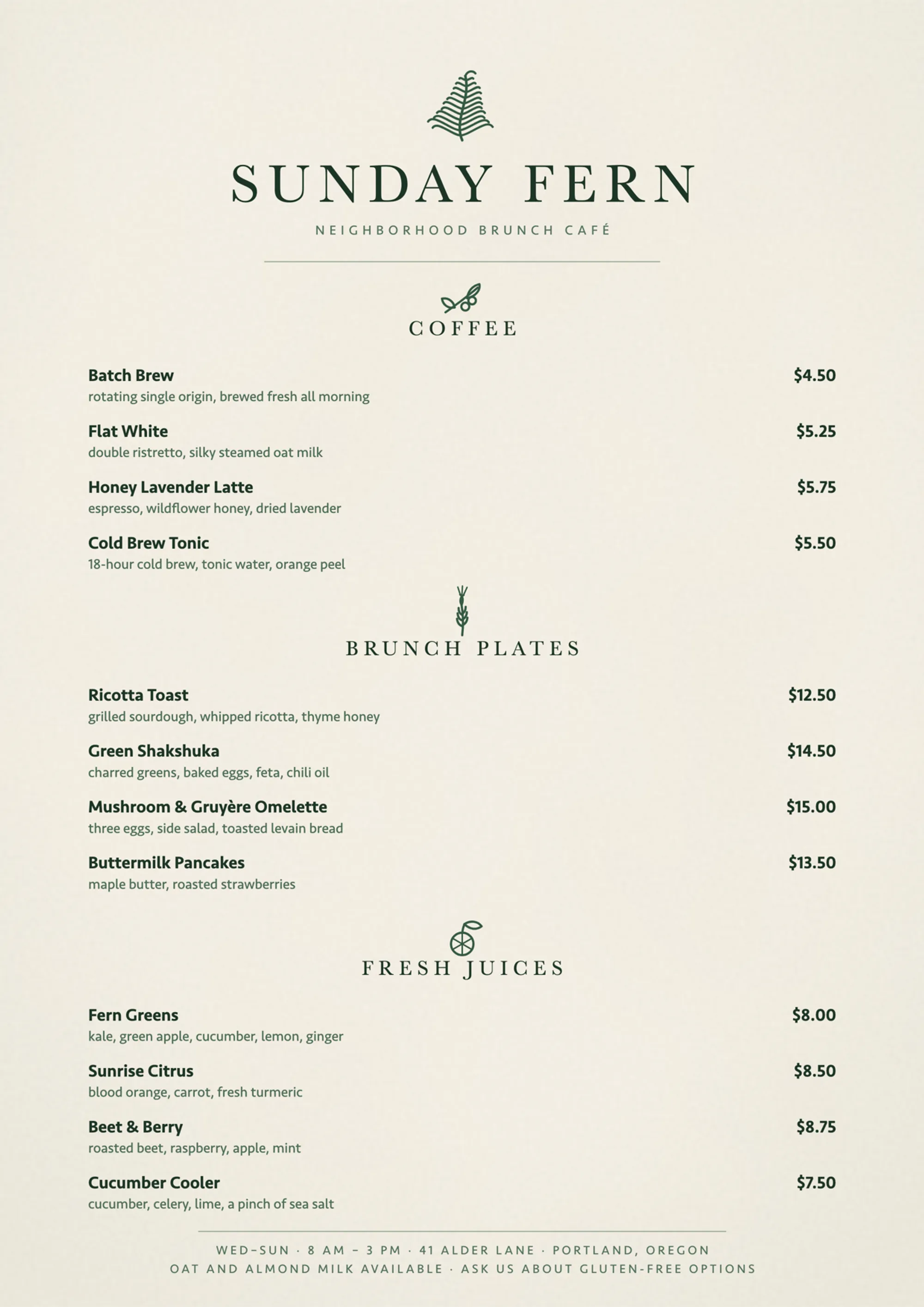
Version 2: new Coffee prices, larger price figures, and the added footer line.
Tips for your own menu
- Give the print size up front. "A4" or "US Letter" lets the agent set margins and type sizes for paper, not the screen.
- Ask for an editable source. SVG keeps text as text, so a price change is a small edit rather than a redraw.
- Name the new file in your edit request. A versioned filename such as
-v2keeps each round separate and easy to find. - Say what to keep. "Keep everything else" stops the layout from drifting while you fix details.
Files you get
sunday-fern-menu.pngandsunday-fern-menu.svg(version 1)sunday-fern-menu-v2.pngandsunday-fern-menu-v2.svg(version 2)
Swap in your own dishes, prices, and colors, and you have a menu ready for the printer.


