

Before a support tool gets built, product, design and engineering need something they can all click through. In this walkthrough we use Design Expert in AutoClaw to turn a written spec for a SaaS support inbox into a runnable HTML prototype, a design canvas with every key state side by side, and a README, then revise the ticket panel in the same task.
What you'll make: a clickable support-inbox prototype (ticket list, filters, detail panel, bulk actions, empty state) as one HTML file, an editable design canvas, a README with finished interactions and open questions, plus a v2 prototype with your edits.
Watch the demo
Step 1: Start a new task and choose Design
Open AutoClaw, click New task, and select Design above the input box. This walkthrough uses GLM-5.3-Flash from the model menu at the bottom right of the input box.
Step 2: Write the spec like a product brief
Say who uses the tool and what each role needs, list the scope item by item, seed realistic sample data, and name the files you want back. Here's the prompt we sent:
Build an interactive prototype of a customer support inbox for a SaaS company, for product, design and engineering to review together. Users are support agents and a team lead in a 6–15 person team: agents need to find and resolve their tickets fast; the lead needs to see the queue and reassign work.
Scope:
1. Ticket list: subject, customer, assignee, status (Open, Pending, Solved), priority (Urgent, High, Normal) and last updated. Search by subject or customer; combine filters for assignee, status and priority; one-click "Clear filters".
2. Ticket detail: clicking a ticket opens a right-side panel with the conversation thread, customer info and an internal note box. Closing the panel keeps filters and scroll position.
3. Bulk actions: select multiple tickets to reassign or change status; show the selected count; confirm or cancel; update list and panel after confirming, with a clear toast.
4. Empty state when search or filters return nothing, with a "Clear filters" action.
Seed 10 realistic sample tickets (billing question, login issue, feature request, bug report, refund) across all statuses and priorities. Team: Maya, Leo, Aisha, Sam.
Clean, calm UI: white and cool grey with a single indigo accent, compact but readable, consistent spacing and icons. Desktop is table-first; make sure it also works on tablet.
Deliver a runnable HTML prototype, an editable design canvas that shows all key states side by side, and a short README listing finished interactions and open questions.
The numbered scope gives the agent a checklist to build and test against, and naming the team members (Maya, Leo, Aisha, Sam) makes the sample data feel real in review. Click Send when you're ready.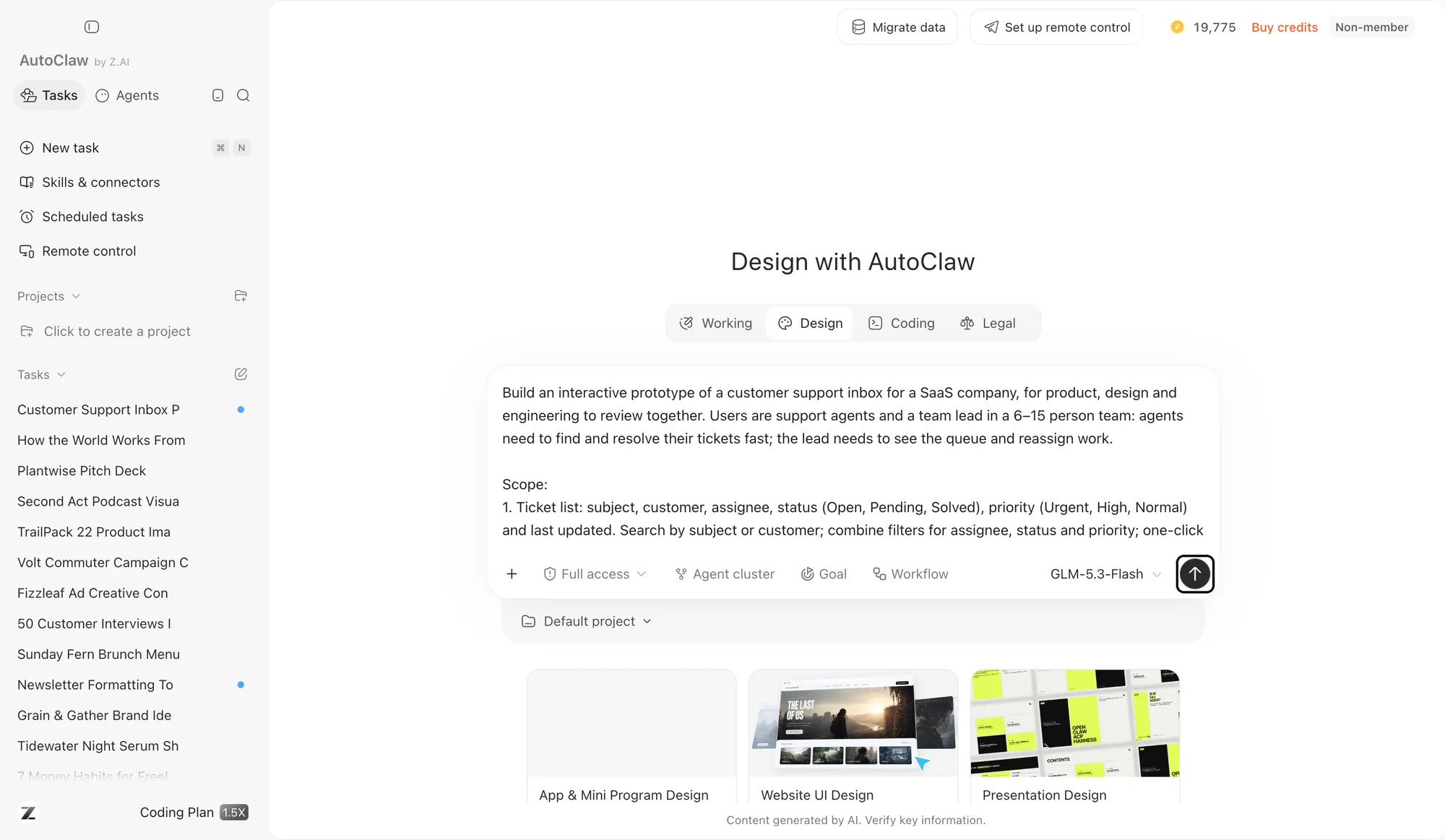
 Paste the brief and click Send.
Step 3: Open the prototype in the preview area
When the task finishes, the answer links all three deliverables: prototype.html, design-canvas.html and README.md. Click the prototype link to open it on the right.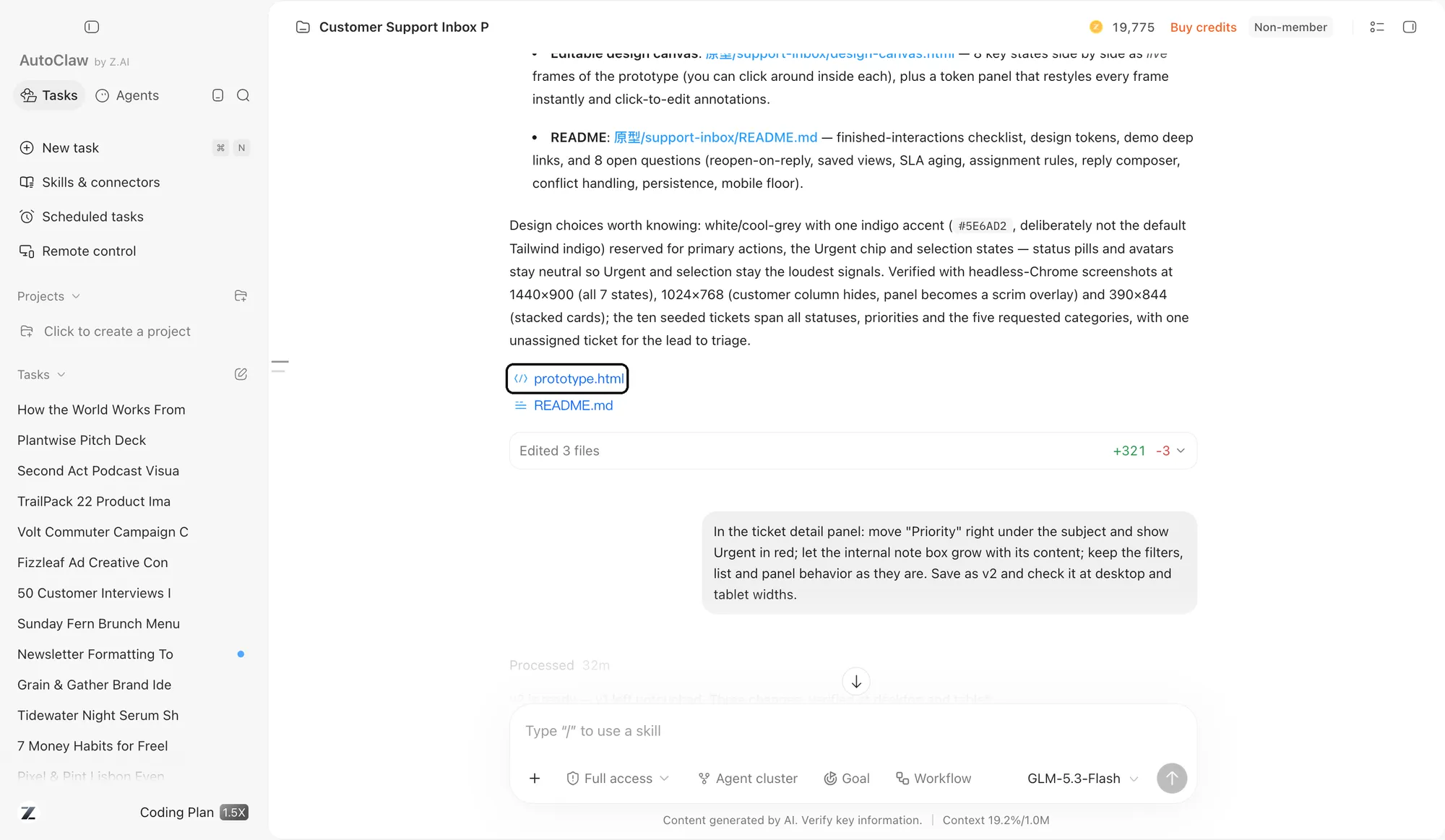
The answer links the prototype, the canvas and the README.
The prototype runs inside the preview area, so you can search, combine filters, open a ticket and try bulk actions without leaving AutoClaw. The agent also checked the layout at 1440×900, 1024×768 (where the customer column hides and the detail panel becomes an overlay) and 390×844.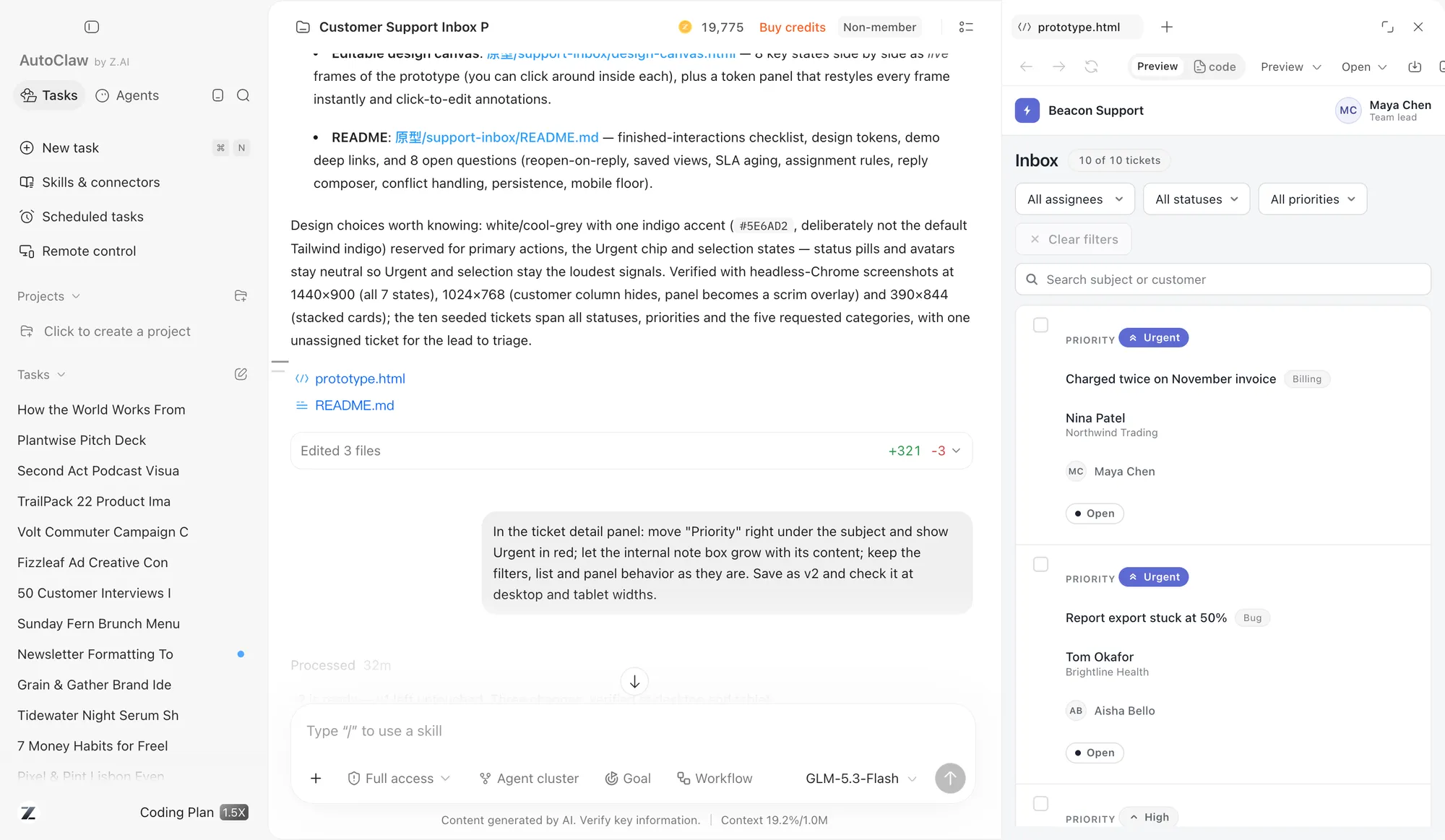
The prototype running in the preview area.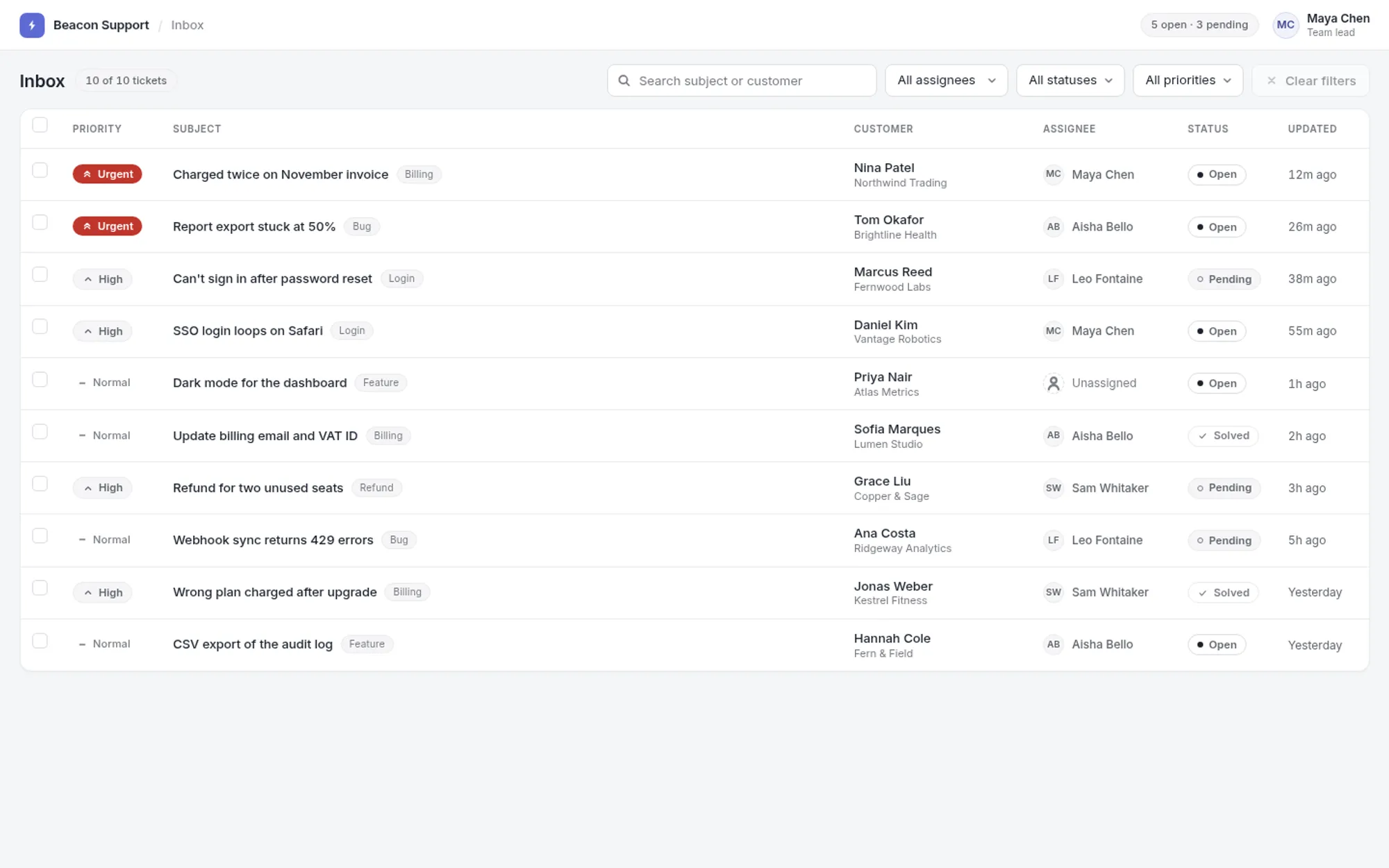
Desktop: the ticket table with search, three filters and Clear filters.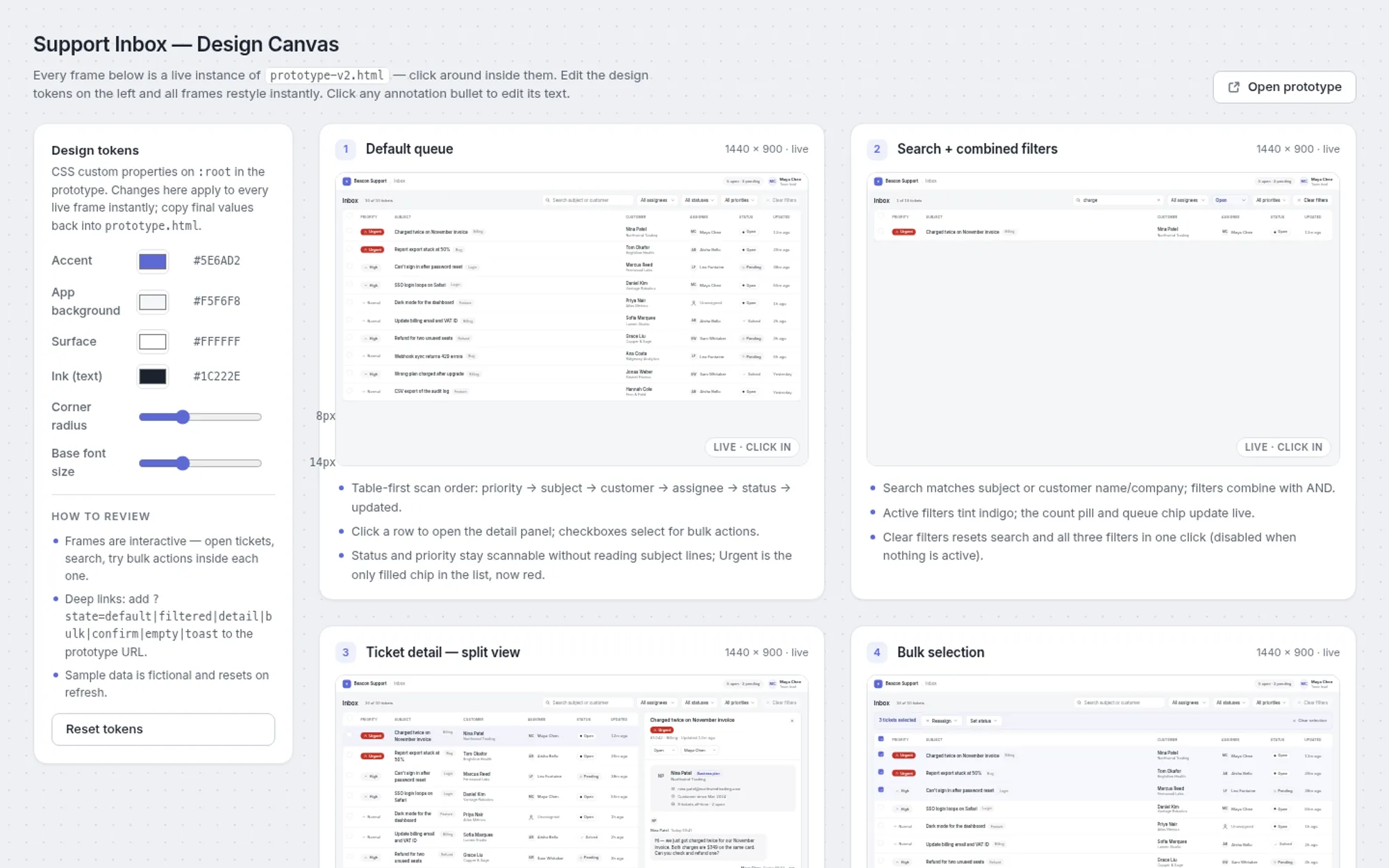
The design canvas shows key states as live frames, with a design-token panel on the left.
The README lists the finished interactions and eight open questions for the team, such as reopen-on-reply, saved views and SLA aging.
Step 4: Ask for changes in the same task
Keep editing in the same task so the agent works from the files it already made. Name what should change, what must stay, and where to save it:
In the ticket detail panel: move "Priority" right under the subject and show Urgent in red; let the internal note box grow with its content; keep the filters, list and panel behavior as they are. Save as v2 and check it at desktop and tablet widths.
Send the change request in the same task.
The agent saved prototype-v2.html and left v1 untouched. Priority now sits in its own row under the subject, and the note box grows from 66px to 135px in its test, then scrolls after a cap. One thing it decided on its own: it applied the red Urgent color everywhere Urgent appears, including the list, so a ticket can't show red in the panel and indigo in the row behind it. It said so in the reply and offered to make it panel-only. It also pointed the design canvas at v2.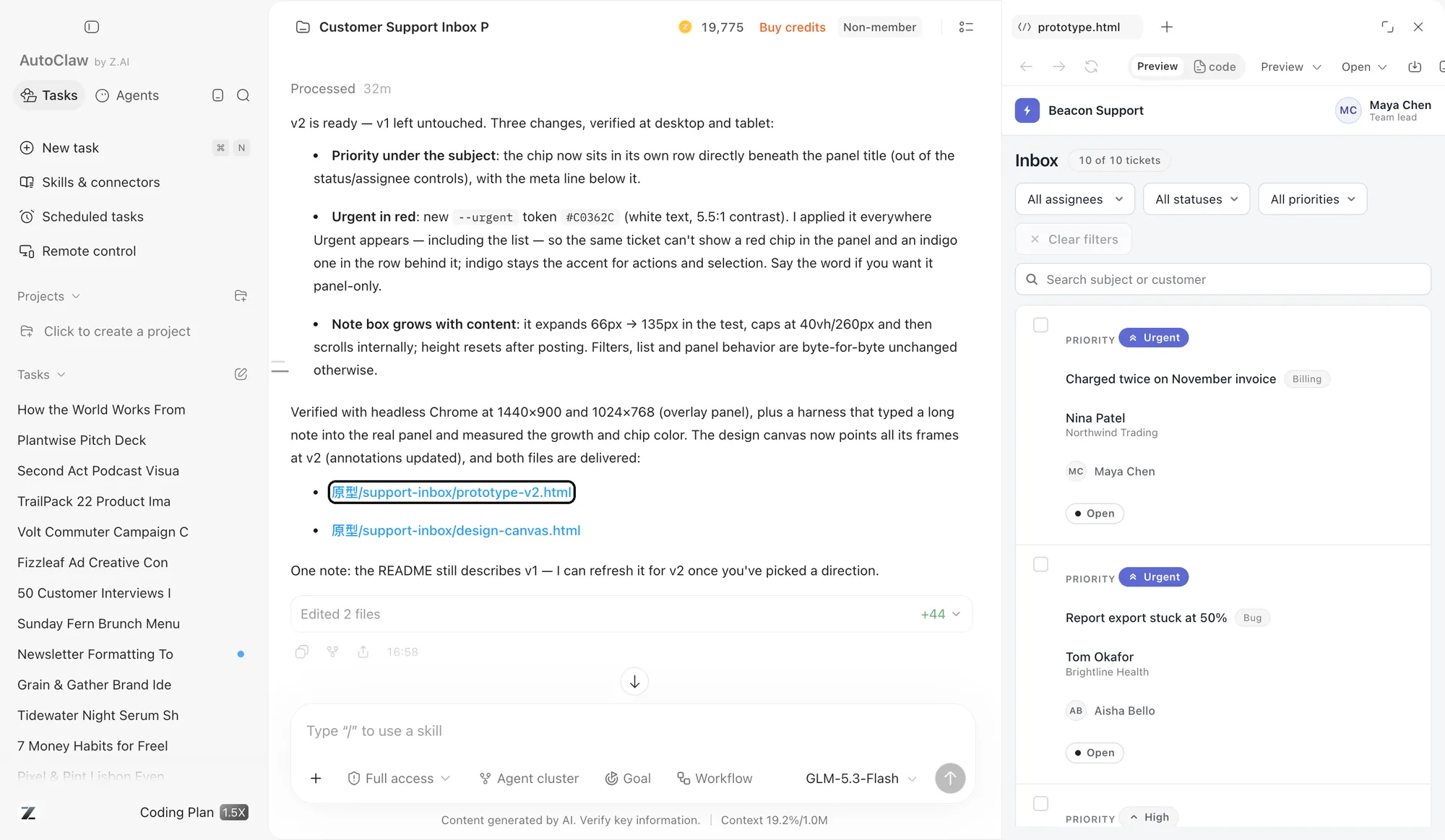
v2 is delivered as a new file; the canvas is updated to match.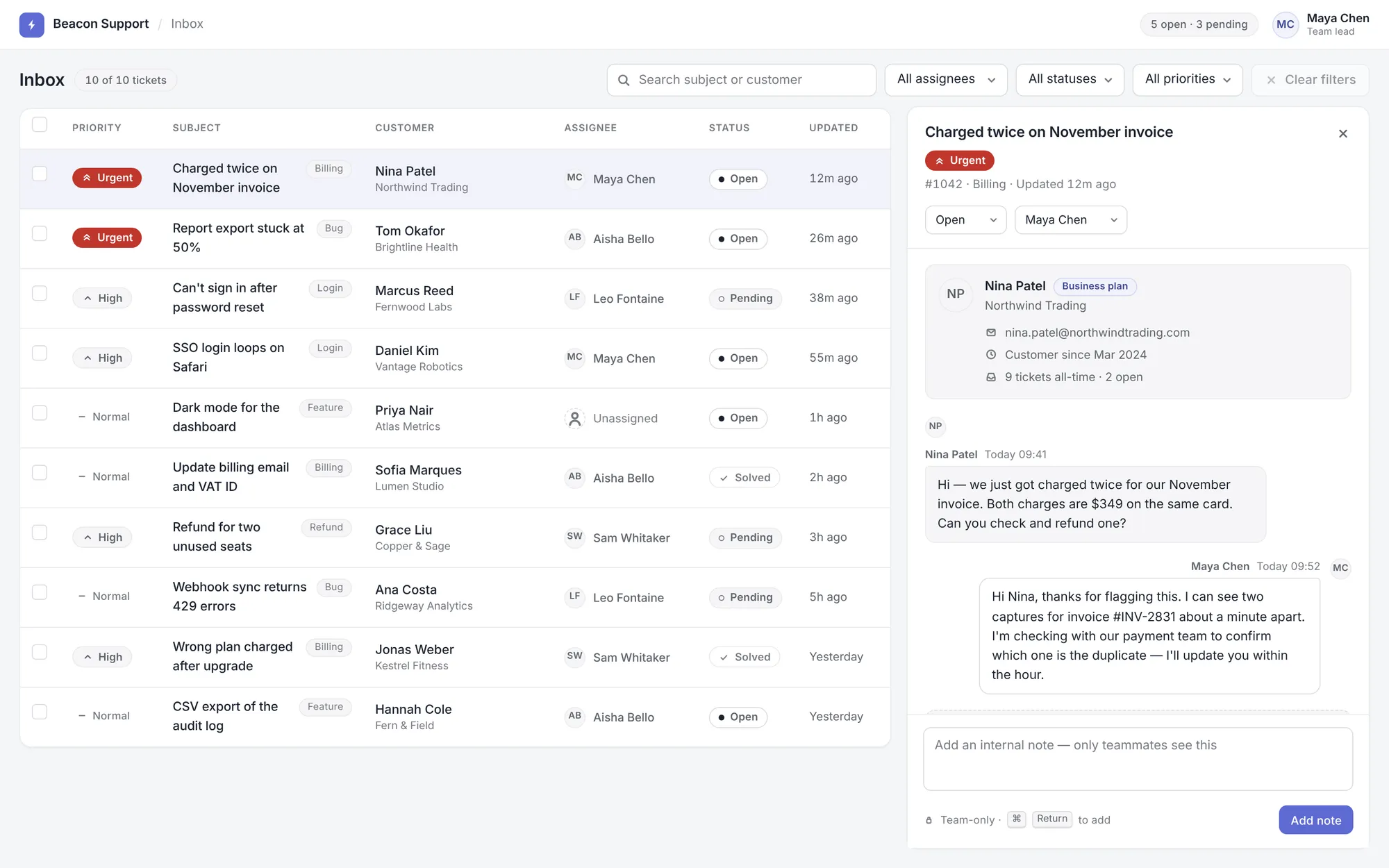
v2: the detail panel with Priority under the subject and Urgent in red.
Tips for your own project
- Describe roles, not just screens. "Agents resolve fast, the lead reassigns" tells the agent which actions deserve the most prominent placement.
- Ask for an empty state and a confirm step. These are the states reviews usually miss; asking for them up front gets them built and shown on the canvas.
- Ask for a README with open questions. It turns the prototype into a review agenda.
- Version your edits. "Save as v2" keeps the original for comparison.
Files you get
prototype.html(v1) andprototype-v2.html(v2), single-file HTML prototypesdesign-canvas.html, key states side by side as live frames (updated to v2)README.md, finished interactions and open questions
Swap in your own ticket fields and team, and you have a prototype the whole team can click through before a line of production code.


