Agents
AutoClaw lets you create multiple Agents. Each Agent has its own persona, model, and working style, and can respond to different IM bots.
Agents and memory
What AutoClaw remembers belongs to your account and workspace, not to an individual Agent. You can view, correct, or delete saved memories in Settings → Memory. See Memory.
How to add multiple Agents
Option 1: Create a new Agent
- On the home page, click the Agents tab in the left sidebar
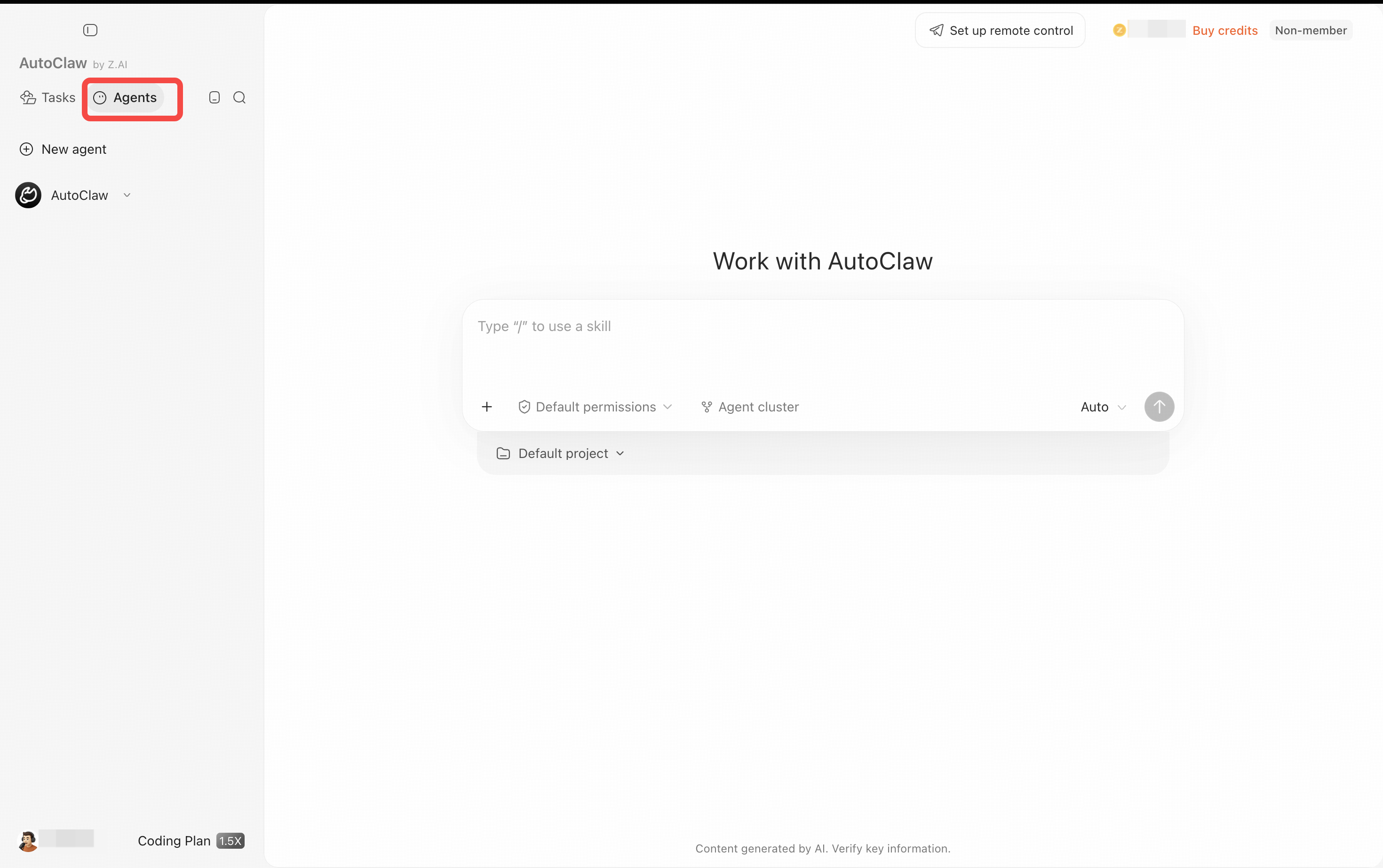
- Click New Agent
- Enter the Agent's details and save to create a new Agent
Option 2: Create a new IM bot and bind it to an Agent
- Go to Settings → Remote control
- Select the platform. For Lark, click Add bot to add another bot
- Under Respond as, choose the Agent that should handle that bot's messages
Switch to or create an Agent
In the left sidebar, switch to the Agents tab to start a new task with a specific Agent.
💡 One Agent can respond as multiple IM bots, so you can reach the same Agent from different chat apps.
Create an Agent from the Agent management page
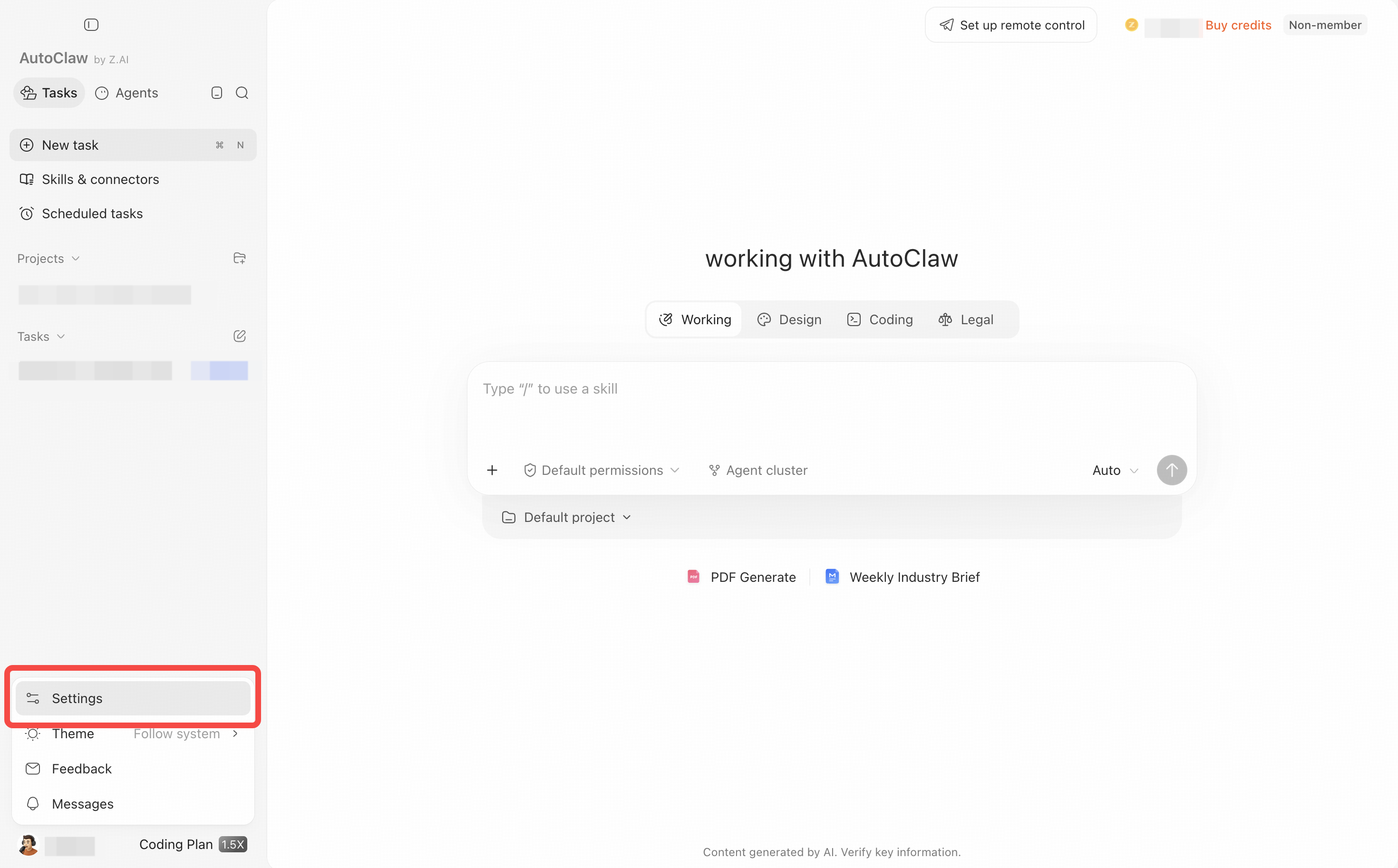
- Open Settings from your avatar in the lower-left corner, then select Agent management.
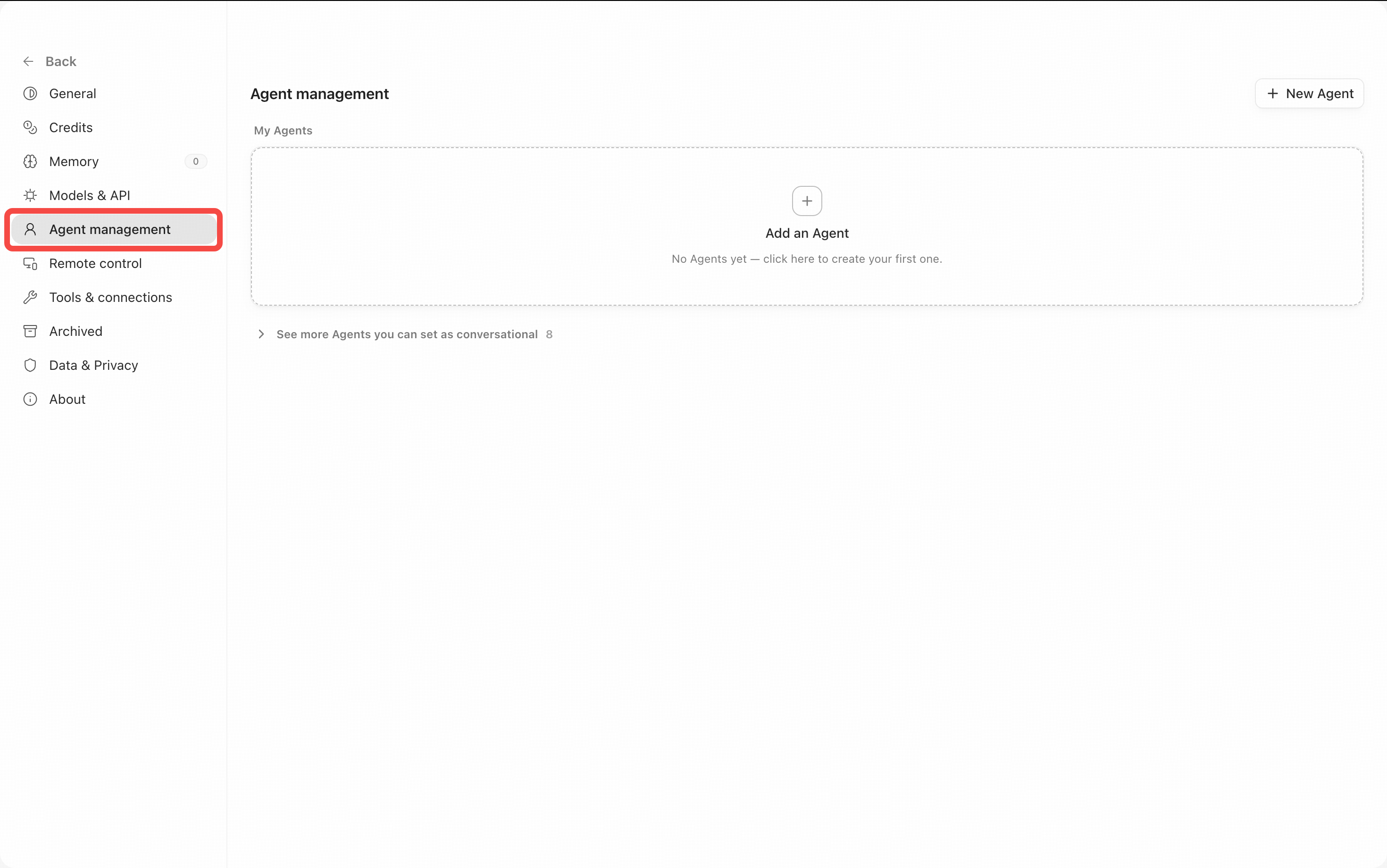
- Click New Agent.
- Enter a name, avatar, and description of its purpose, and choose a suitable model and working style for it.
- After saving, go back and start using it. To make changes, edit the Agent on the Agent management page.
We recommend splitting Agents by stable responsibilities, such as "Content operations assistant," "Contract review assistant," and "Local computer organizer." Don't create many Agents just for temporary tasks, or your workspace will become too scattered.
Management and binding principles
- One Agent, multiple channels: One Agent can respond as multiple IM bots.
- Different Agents, separate responsibilities: Different Agents have their own persona, model, and working style, which suits separating work, personal life, or different projects.
- Check the impact before making changes: Changes to an Agent's model, prompt, or workspace affect only later tasks. For important tasks, we recommend starting a new conversation to verify.
- Back up before deleting: If an Agent has accumulated important outputs, back them up before deleting or rebuilding it.