Create your first task
💡 Starting with a small, clear, verifiable task is the fastest way to get familiar with AutoClaw's input, execution, and delivery flow.
Basic steps
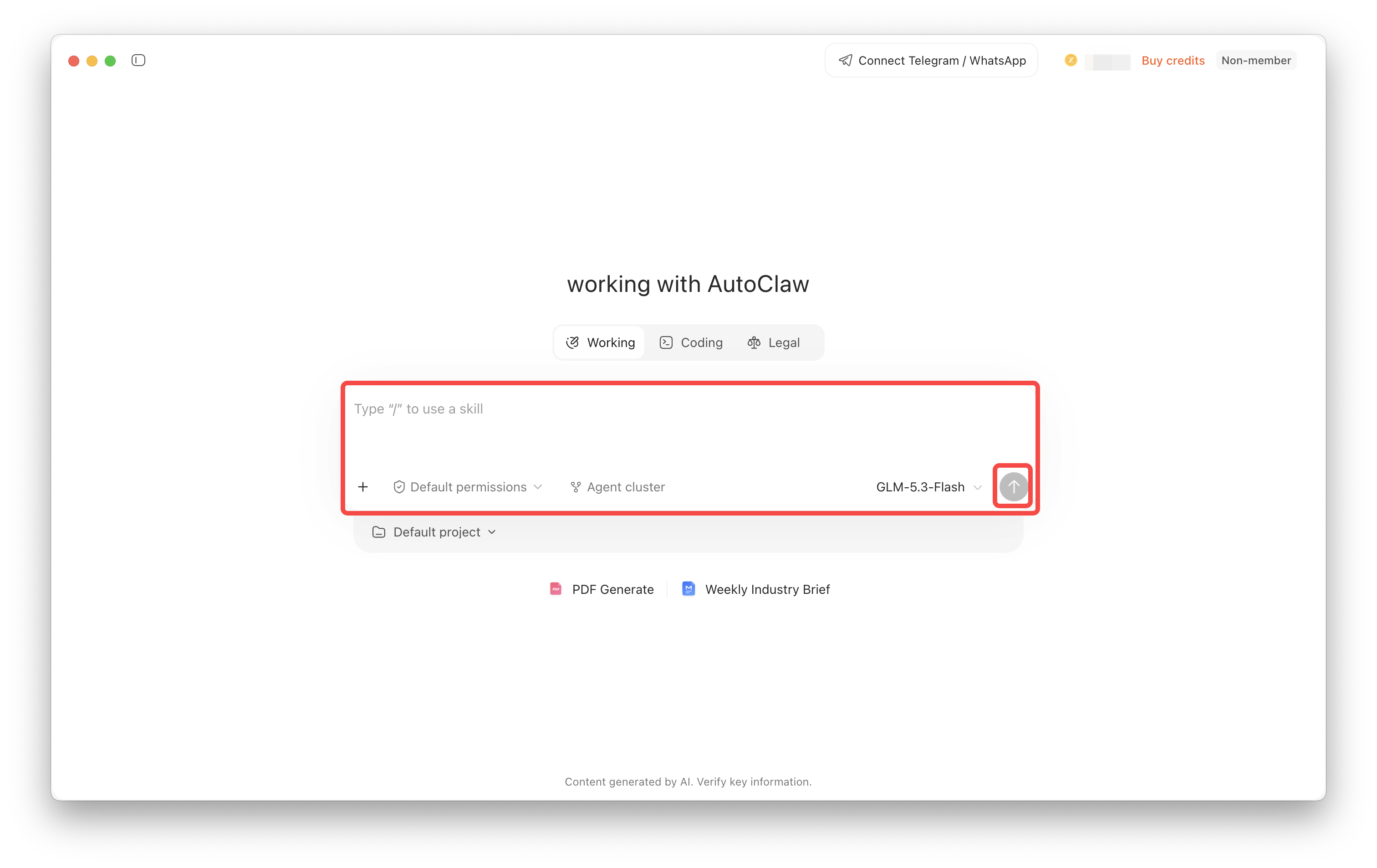
- After installing and signing in to AutoClaw, go to the home page.
- Enter your first task in the chat box, for example:
- "Summarize this document for me" (after uploading a file)
- "Look up the news in the AI Agent industry over the past week"
- The Agent runs the task, and the results appear under Outputs on the right.
Your first task in each mode
Mode | Suggested first task |
|---|---|
Working | Ask a question directly or upload a document to process |
Legal | Enter a legal question directly, or upload a .docx contract for review |
Step-by-step guide with screenshots
- Open the AutoClaw home page and make sure you are on the "Tasks" tab.
- Click the large chat box in the middle and describe the result you want. To work with files, first click "+" at the lower left of the input box to upload them, then describe the task.
- Choose how to run the task: send ordinary questions directly; for complex tasks that can be split up and run in parallel, turn on "Agent cluster."
- Click the Send button in the lower-right corner. While the task runs, you can add requirements or ask it to revise existing results.
- When it finishes, check the conclusions, citations, files, or output paths in the reply. If the result isn't what you expected, keep asking follow-up questions in the same conversation.
A good task usually has three parts: what to do, what materials to base it on, and what counts as done. For example: "Read the meeting minutes I uploaded and turn them into an action list with conclusions, owners, and deadlines. Flag any unclear information separately."
Tips for first-time use
- Start with a small task that takes 5-10 minutes, and confirm that input, file upload, and viewing outputs all work properly.
- If a task involves sending content externally, or deleting or overwriting files, explicitly ask for confirmation before execution in your instructions.
- Keep iterating on a task in the same conversation when possible. AutoClaw uses the context to understand your revision requests.