Quick start (Legal assistant)
🚀 Before using the Legal assistant, complete the AutoClaw download, installation, and account login. See Getting started → Download and install.
Download the AutoClaw desktop app from the AutoClaw website to use the Legal assistant.
Switch to the Legal assistant
On the home page, select Legal above the chat box to switch to the Legal assistant. Then send a task to use its professional legal capabilities.
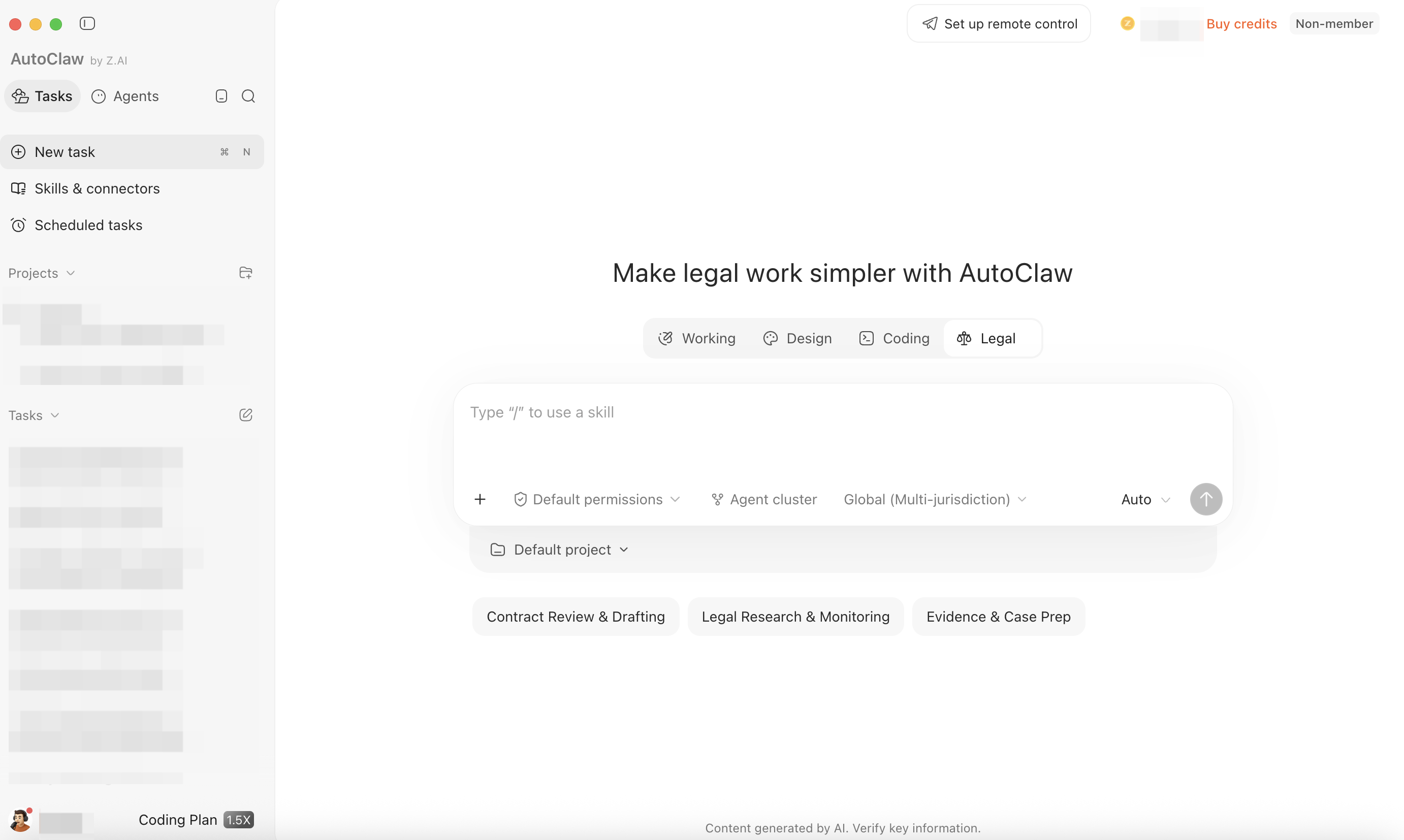
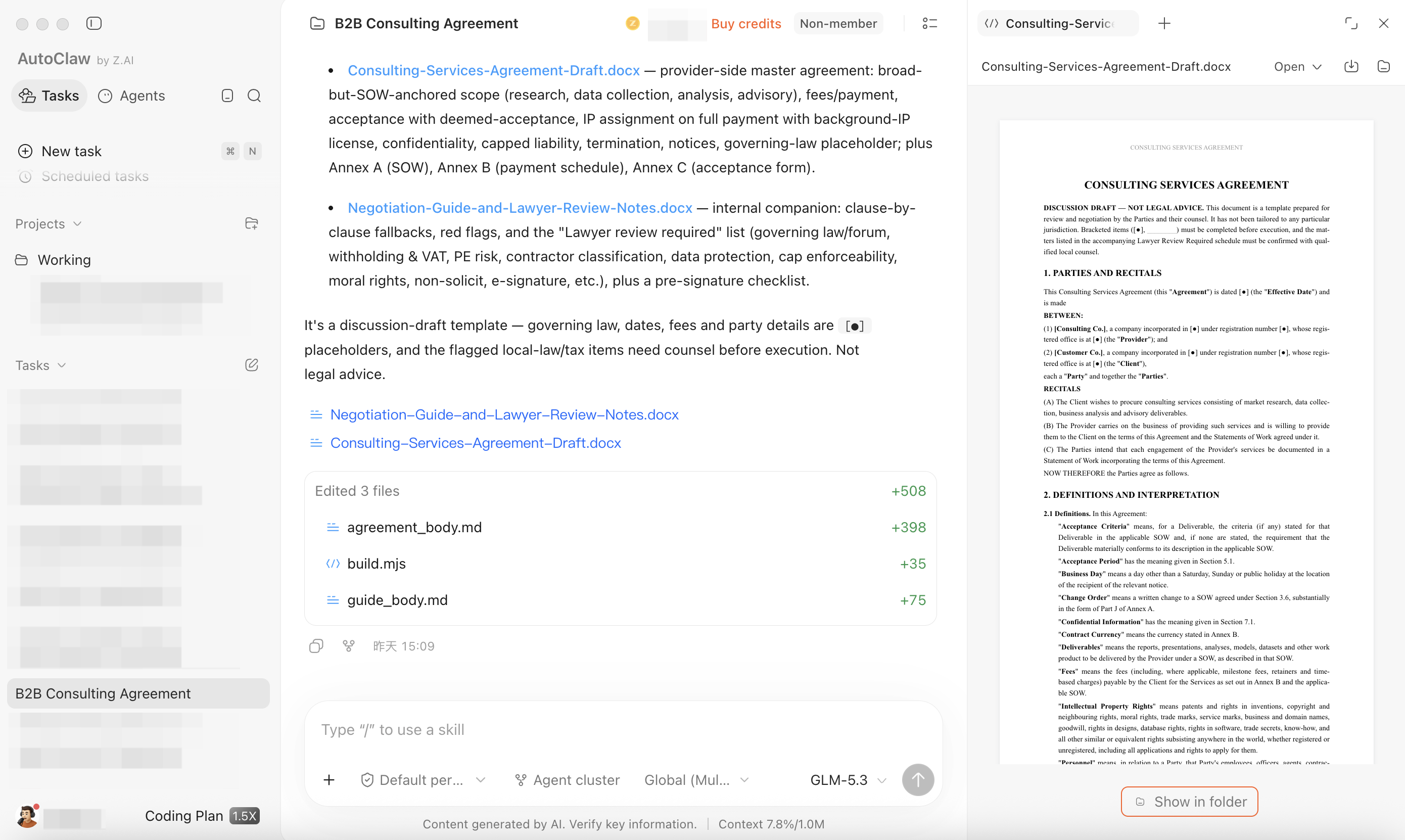
The Legal assistant interface uses the same three-column layout as the Working mode
- Left sidebar: manage projects and tasks
- Middle chat area: where you type in natural language
- Right Outputs panel: files produced by the Legal assistant.
Create a project
When using the Legal assistant for the first time, create a new legal project: click New project in the left sidebar, enter a project name, add a source folder (optional), and under Work scenarios choose Legal assistant.
Below the chat box, click the project to:
- Switch projects
- Bind a local project folder, so the Legal assistant can directly read the existing materials in the project folder
Click … next to a project in the left sidebar to pin it, edit it, or remove it from AutoClaw (removing a project does not delete files on your computer).
💡 Tip: use one project per case. The Legal assistant supports organizing materials, conversations, and outputs by case, which suits long-term follow-up.
Choose a jurisdiction
Before you ask a legal question, choose the jurisdiction that applies below the chat box. The default is Global (Multi-jurisdiction). The Legal assistant uses the jurisdiction you select for the whole conversation and does not switch automatically, so choose the one that matches your question — for example, select United Kingdom before asking about English company law. For some jurisdictions the Legal assistant searches official sources; for others it relies on public web sources and tells you when official sources are not available.
Task templates
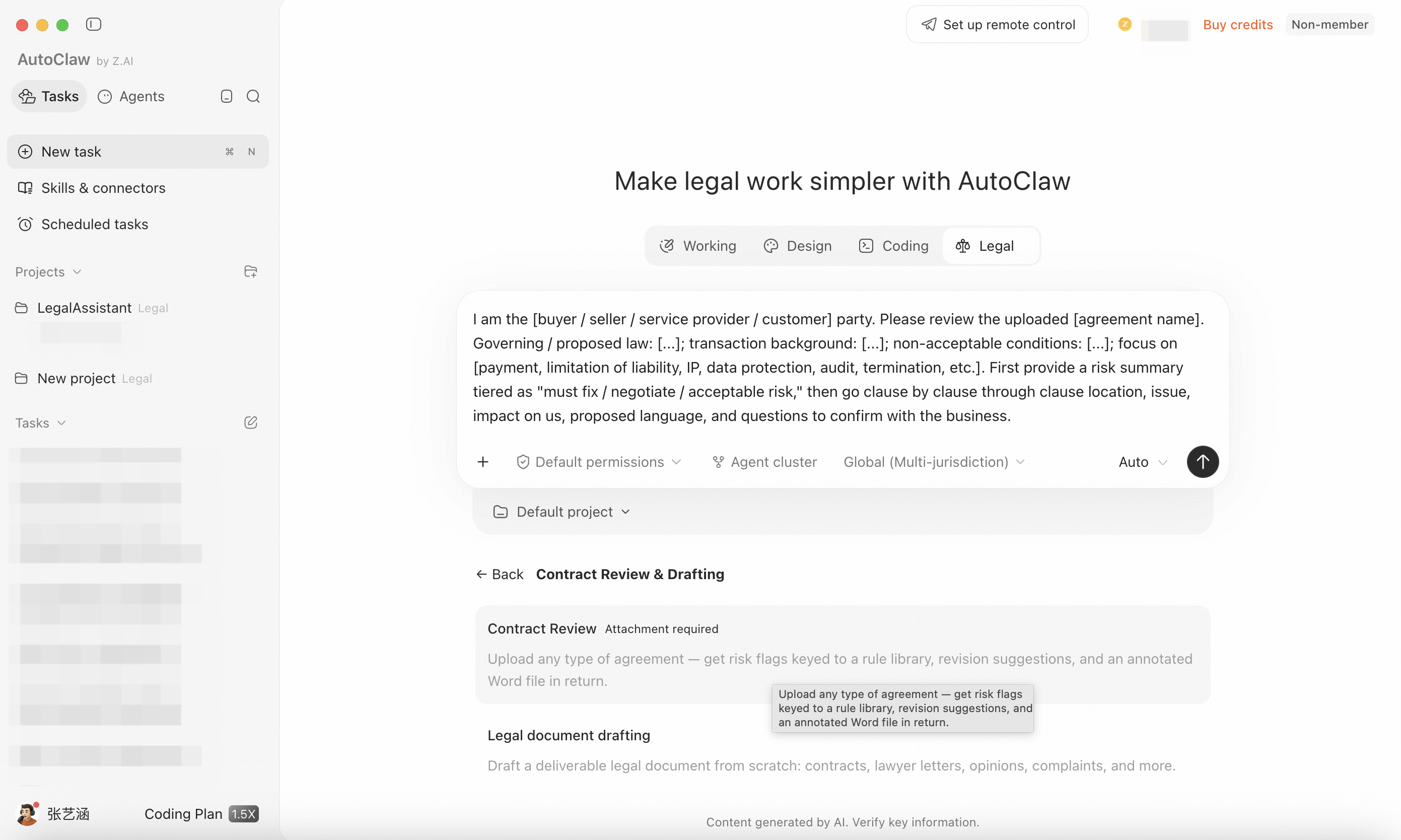
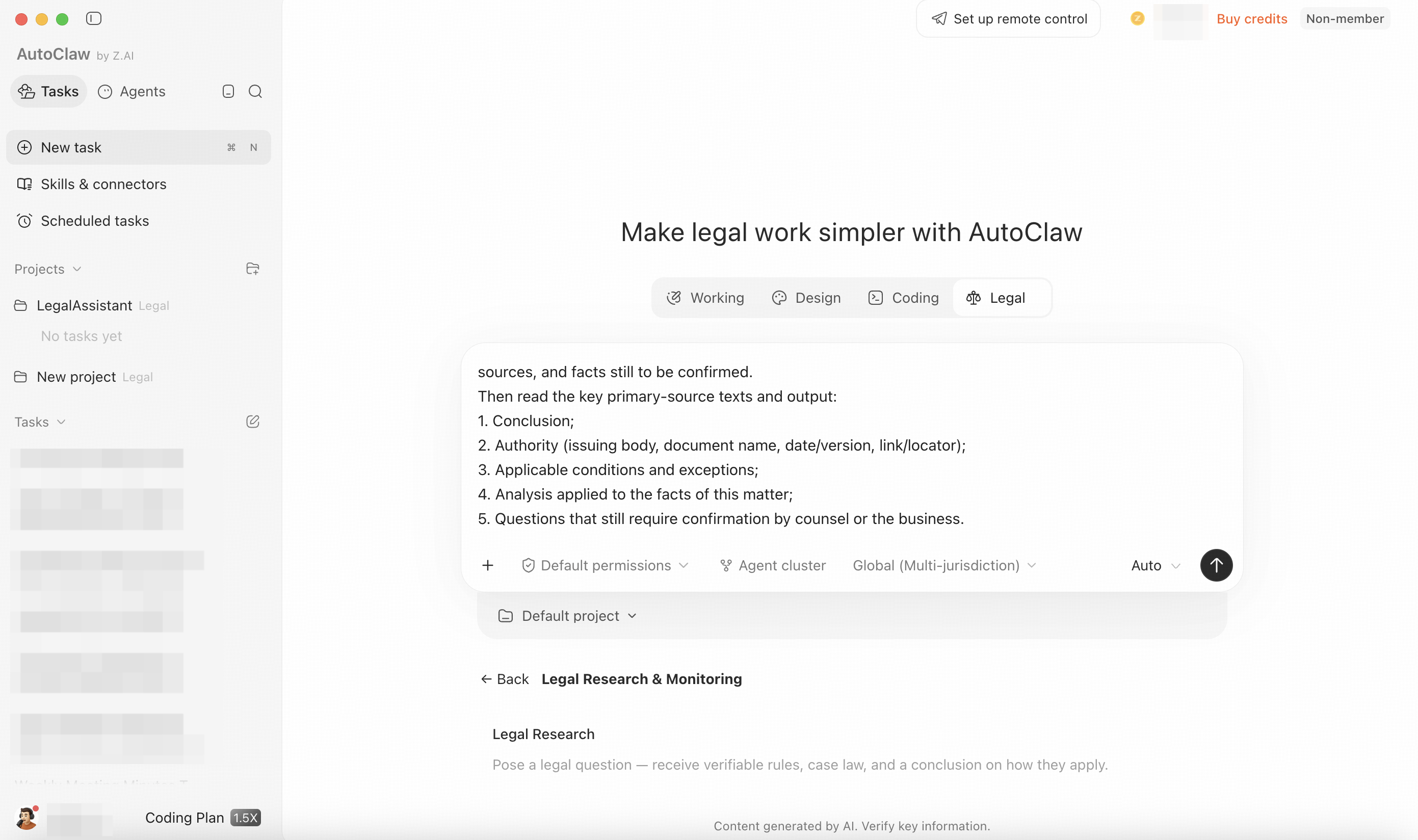
Below the Legal assistant chat box, you will find task templates such as Contract Review & Drafting, Legal Research & Monitoring, and Evidence & Case Prep. Choose the one that fits your task.
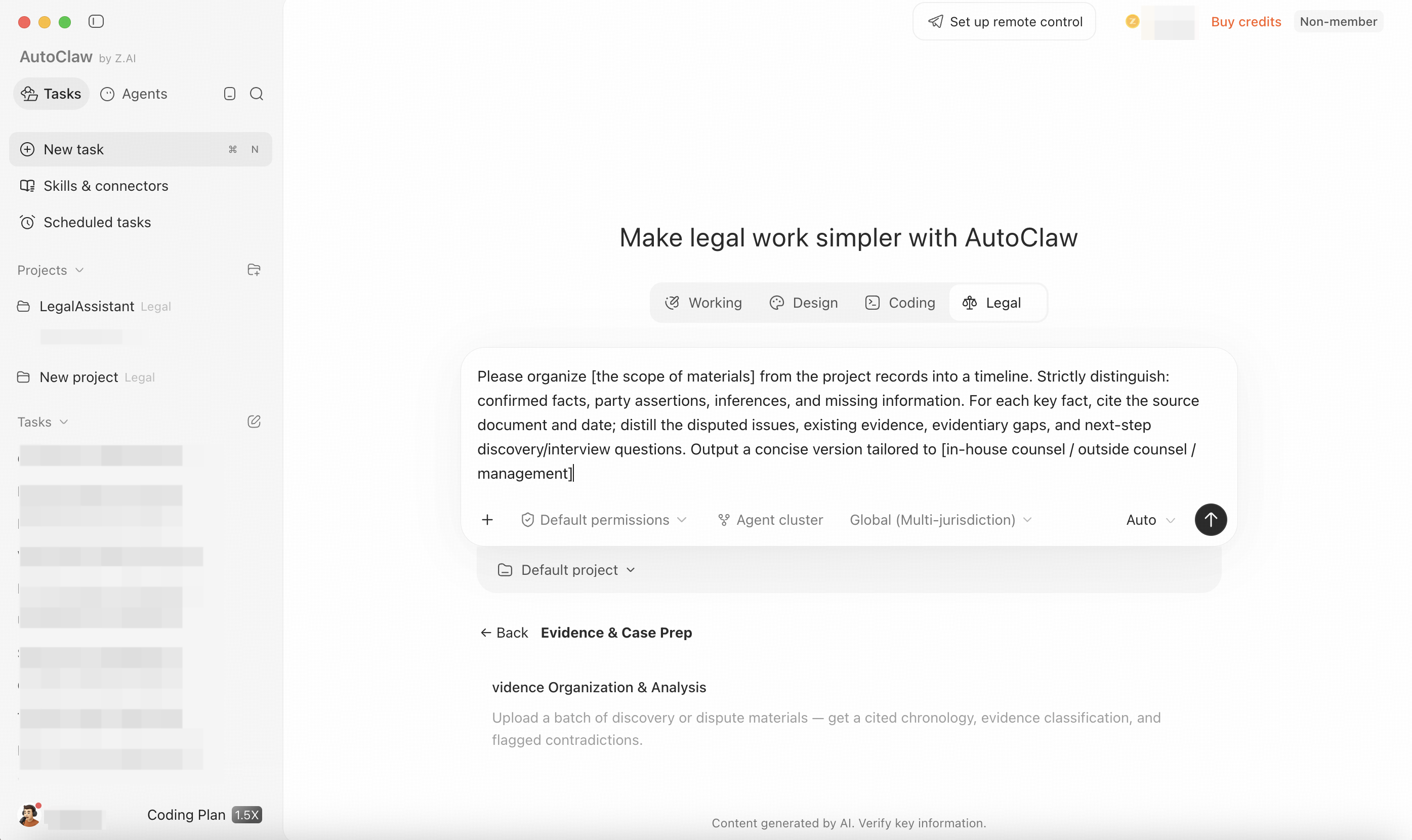
Start a conversation
We recommend preparing different materials for different tasks:
Task type | Recommended preparation |
|---|---|
Contract review | Prepare an editable .docx file first |
Legal research | Just type your question |
Case materials organization | Upload chat records, emails, judgments, evidence materials, or meeting minutes |
Just send your task to use the professional legal capabilities. Research results include their sources where available.
✅ Before starting a specific task, we recommend reading Prompting tips so the Legal assistant can get it right the first time.