Feature overview
The AutoClaw desktop interface has three main columns:
Task sidebar (left)
Lists your tasks and projects. You can start a new task, switch to the Agents view, and open past tasks.
Chat panel (middle)
The core area for talking with the Agent. Below the input box, you can switch models, add connectors, and select Skills.
Outputs panel (right)
Documents, spreadsheets, reports, and other files produced by the Agent appear under Outputs.
Mode entry
Working is the default mode.
You can switch modes with the tabs on the home page: Working, Design, Coding, and Legal.
- Legal assistant: After you enter this mode, choose a jurisdiction and, optionally, a project (a local folder with your materials) below the chat box. For details, see Quick start (Legal assistant)
How to use the chat box
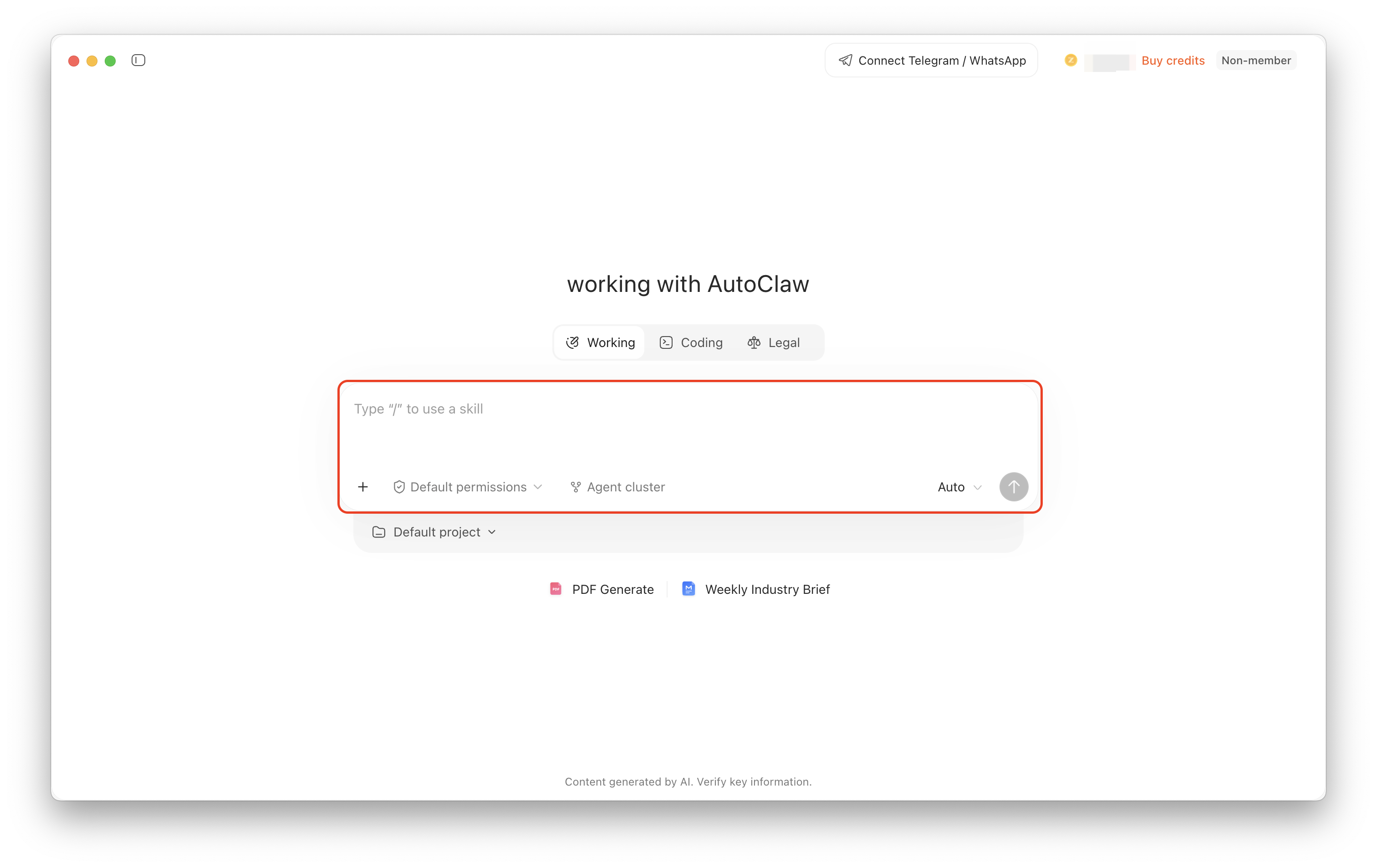
The chat box is the main entry point for starting tasks and continuing conversations. You can type your request directly, add files, choose a model, and turn on Agent cluster depending on the task's complexity.
Location | Purpose |
|---|---|
Input area | Describe the task to complete. Type "/" to select an available Skill. |
+ (Add) | Add documents, images, spreadsheets, and other task materials. |
Model | Select the model used for the current task. |
Agent cluster | Organize multiple Agents to work together on complex tasks that suit parallel division of labor. |
Send button | After entering your content, click Send to start the task. |
- Click the input area and describe your goal, the scope of materials, and the expected output in natural language.
- To work with existing materials, click + at the lower left of the input box and choose Add attachment.
- Select a model or Agent cluster as needed. For simple tasks, keep the default settings.
- Click the Send button in the lower-right corner. AutoClaw runs the task in the current conversation and keeps you updated on its progress.
💡 When describing a task, state clearly "what to do, what materials to base it on, and what format to deliver." For example: Based on the attachment, prepare a 3-page project report covering the background, progress, and next-step plan.