Memory
🎁 The longer you use it, the better it knows you. AutoClaw remembers what you teach it once: your preferences, corrections, and work habits are saved and stay in effect across conversations and restarts.
Sound familiar?
Do you keep giving your assistant the same instructions? "Keep it short," "Reply in English," "Skip the filler"... and you have to start over in every new conversation. Memory is built for exactly this. The whole process takes just: You say it once → it remembers → it applies automatically from then on.
How it works
1️⃣ Identifies what is worth remembering. When your corrections, preferences, long-term facts, or work methods come up in a conversation, AutoClaw decides whether they are worth saving long term. Small talk, simple Q&A, and one-time requests are not remembered.
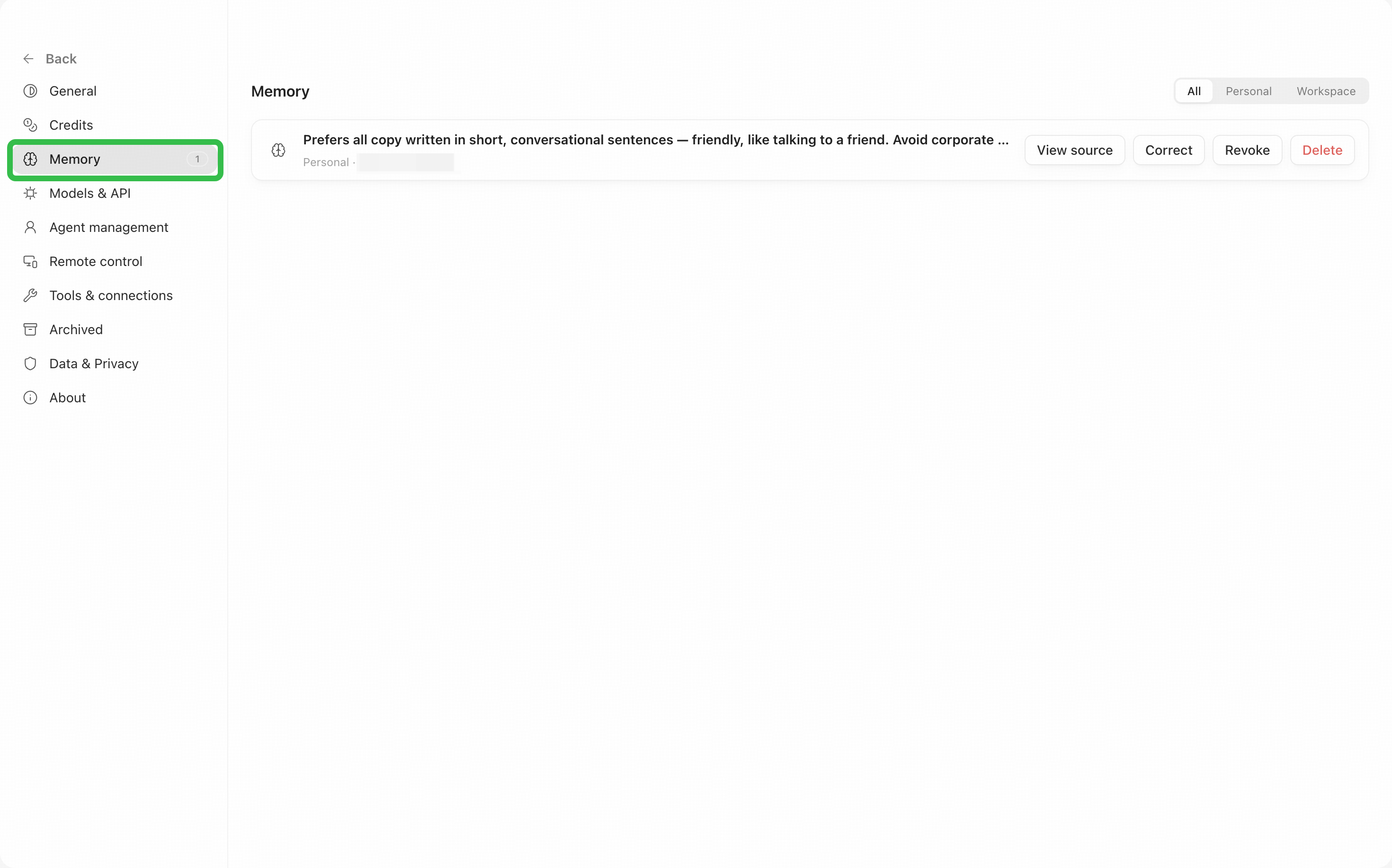
2️⃣ Saves it as a memory. Content worth saving is condensed into a short entry and saved to your memory, which you can review in Settings → Memory.
3️⃣ Applies automatically next time. In every new conversation after that, AutoClaw reads this memory first and answers according to your preferences and facts, so you do not need to repeat yourself.
How to get it to remember
When your message expresses a "long-term intent" and includes a specific, actionable instruction, AutoClaw may suggest saving it as a preference or fact worth remembering rather than treating it as a one-time request. Saying just a word like "always" without specifying what to do is not enough to remember.
Scenario | Example |
|---|---|
Correcting behavior | “Don’t send messages in group chats again.” |
Stating a preference | “Remember to keep replies short.” |
Recording a fact | “Remember that this company is now public.” |
Setting a standing practice | “From now on, research first, then write.” |
Phrases like these help AutoClaw recognize a long-term preference: from now on, going forward, in the future, every time, next time, always, by default, remember this / remember that / remember to, my preference.
💡 Key difference: saying "Keep replies short" = a one-time request; saying "From now on, keep replies short" = a long-term preference. If you add qualifiers such as "only this time" or "for now", or explicitly say "no need to remember this", AutoClaw treats it as a one-time request.
What memory saves
Memory mainly saves information that is useful to you over the long term:
- Your preferences: reply style, language, and formatting habits, such as "keep replies concise" or "use English by default".
- Facts: facts about your work and life that hold over the long term, such as "my projects always use TypeScript" or "the project deadline is a specific date".
- Corrected behavior: mistakes you have pointed out and behavior you do not want to see again.
Try these scenarios
- 🎨 Customize your writing style: "From now on, write copy in short, conversational sentences, like talking to a friend. No corporate tone."
- 📧 Set communication standards: "Remember to always lead with the conclusion in emails to clients, then give the background and details."
- 💻 Lock in technical preferences: "Remember that my projects always use TypeScript, never plain JavaScript."
- 🛡️ Set safety boundaries: "From now on, never @everyone in any group chat unless I explicitly ask you to."
- 📅 Customize workflow habits: "From now on, whenever you schedule a meeting for me, add a 15-minute buffer and put the video call link in the description."
View and adjust memory
To check what AutoClaw has remembered, open Settings → Memory. There you can view the source of each memory, correct it, revoke it, or delete it permanently. You can also turn memory off there; when it is off, no new memories are saved and saved memories are not used in conversations. You can also ask in the conversation, for example "What do you remember about my preferences?".
Tips
- Use clear long-term expressions such as "from now on," "always," or "remember that," and state the scope they apply to.
- Keep work and personal preferences clearly separate by saying which context a rule applies to, for example "for work emails only".
- Do not save passwords, keys, or one-time sensitive information as long-term memory.
- Review your memory from time to time and delete entries that are outdated or no longer apply.