Scheduled tasks
💡 Scheduled tasks let an Agent automatically run one-time reminders or recurring work at specified times, and send the results to the conversation or IM channel you choose.
Scheduled tasks let an Agent run work automatically on a set schedule. Typical scenarios:
- Industry news: Push the latest news on a schedule every day
- Stock information: Look up and push market data on a schedule
- Monitoring tasks: Recurring work such as content monitoring and public opinion monitoring
Create a scheduled task
You create scheduled tasks through conversation, with no need to write rules by hand. You can tell the Agent, "Every weekday at 9 a.m., summarize the AI Agent news from the past 24 hours, rank it by importance, and send it to Lark."
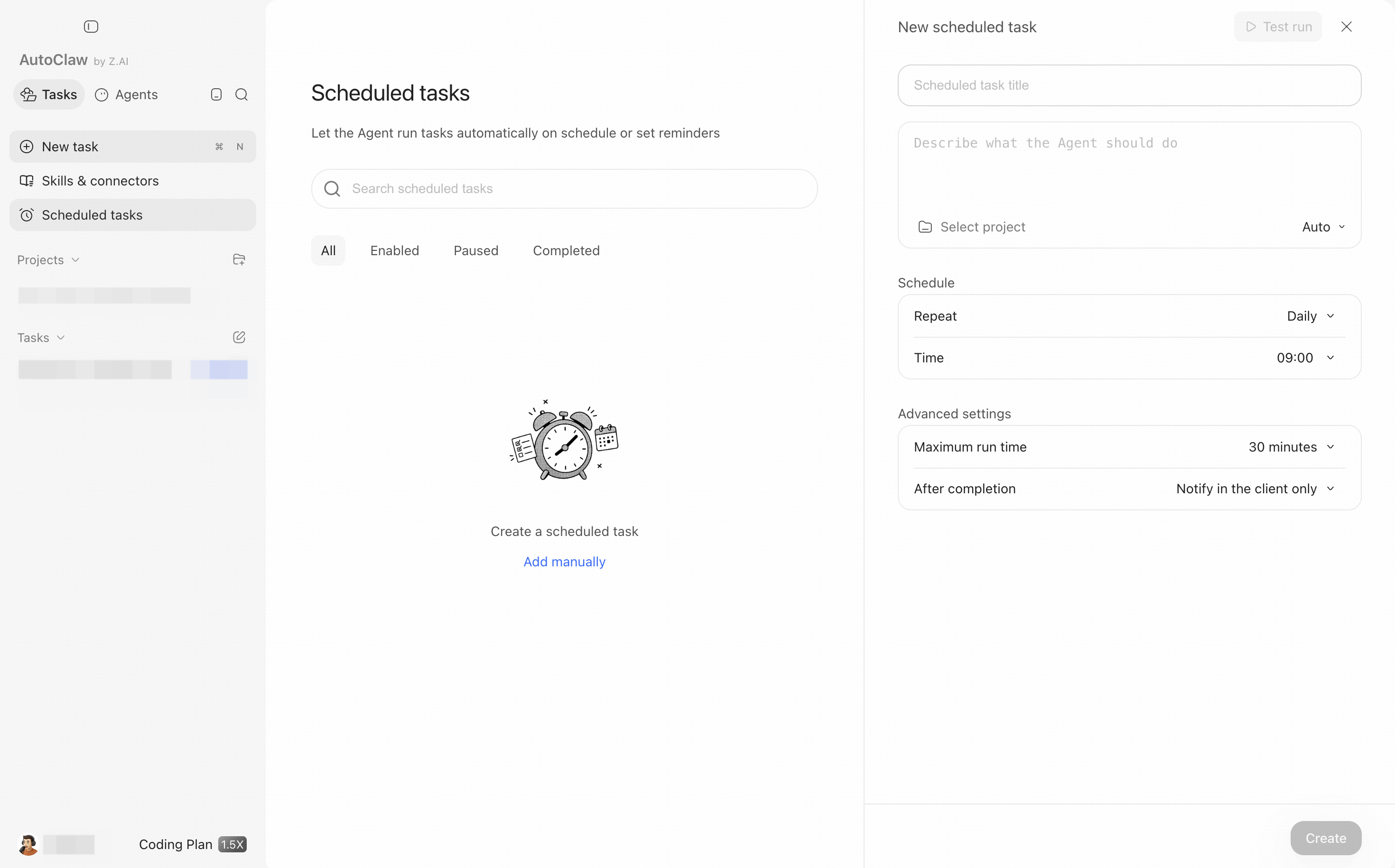
Try to make four things clear when you create one: when it runs, how often it repeats, what exactly it does, and where the results go. For a one-time reminder, give the date and time directly. For a recurring task, say whether it runs on weekdays, daily, weekly, or monthly, and which time zone to use.
View and manage
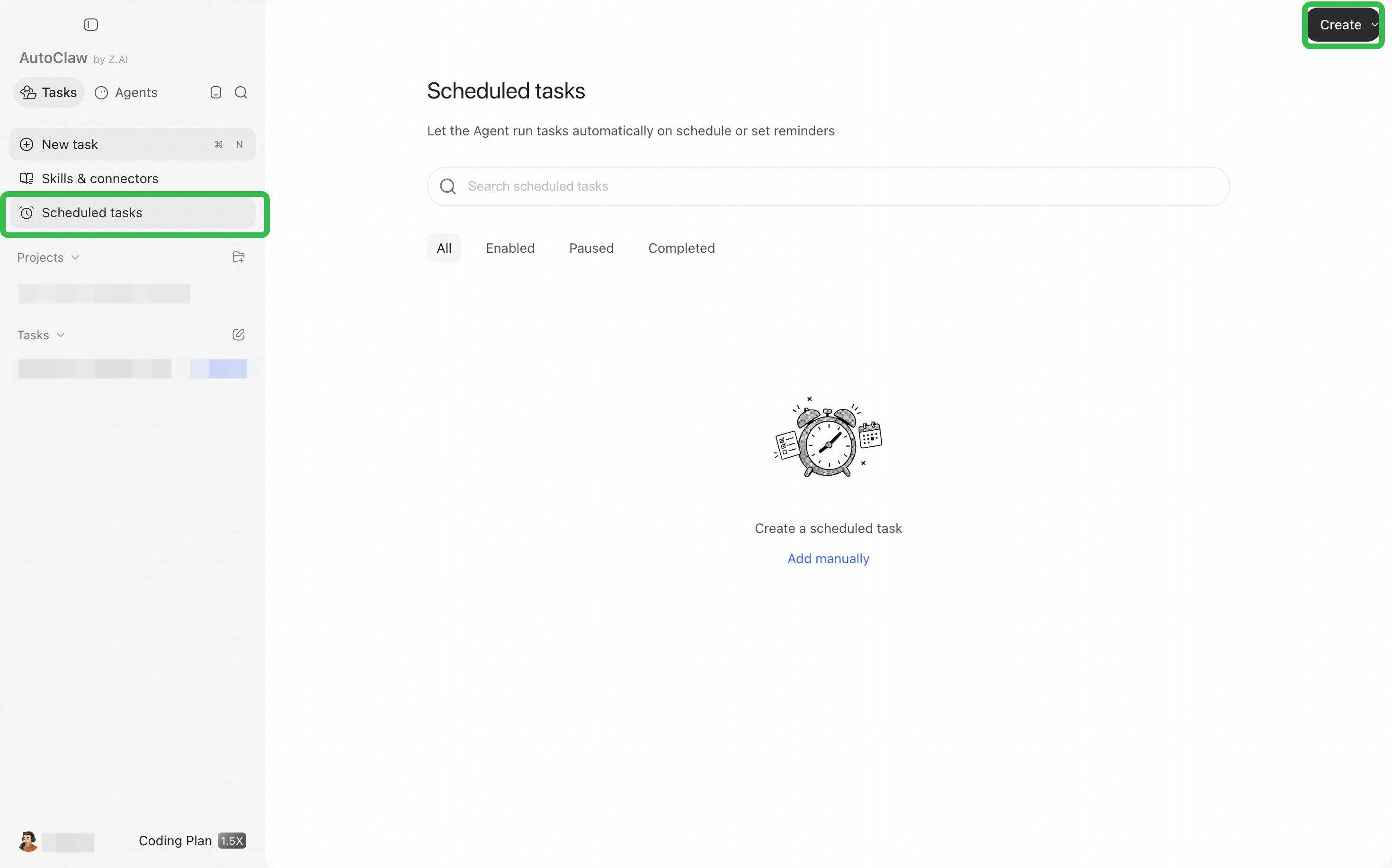
- Click Scheduled tasks in the left sidebar.
- You can see each task's name, schedule, and run status. Use the search box and filters (All, Enabled, Paused, Completed) to find a task.
- Use the switch on a task to pause or resume it. Use Delete task to remove tasks you no longer need.
- To change the time or content, go back to the conversation with the Agent that created the task and describe the new requirements, or delete the task and create it again.
How to review it after creation
- After creating a task, confirm the time zone, next run time, and receiving channel.
- For news and monitoring tasks, run them manually once first to check the data source and output format.
- If a task depends on a connector or IM channel, confirm the authorization has not expired and the target group or contact is still available.
- For long-running tasks, we recommend checking the run results regularly. Turn off tasks you no longer need to avoid duplicate notifications and credit use.