Download and install
Download and install
AutoClaw is available for macOS (Apple silicon and Intel), Windows 10 and later, and Linux (x64 and ARM64). Download the installer for your system at https://autoclaw.z.ai/. An internet connection is required for model calls.
Quick installation: no need to rent a cloud computer, set up a development environment, or have any technical background.
Sign in
Open AutoClaw and choose Continue with Zai or Continue with Google. Your browser opens so you can finish signing in. If a referral-code dialog appears after your first sign-in, enter a friend's code, or click No code, continue. After signing in, you will enter the desktop workspace.
For more questions about installation, updates, and accounts, see the FAQ.
Post-installation checks
When you first open AutoClaw, we recommend confirming in the following order that the desktop app works properly:
- The home page displays the chat box correctly, and you can switch models.
- Enter a simple request in the input box, such as "Introduce AutoClaw in three sentences," and send it. You should receive a reply.
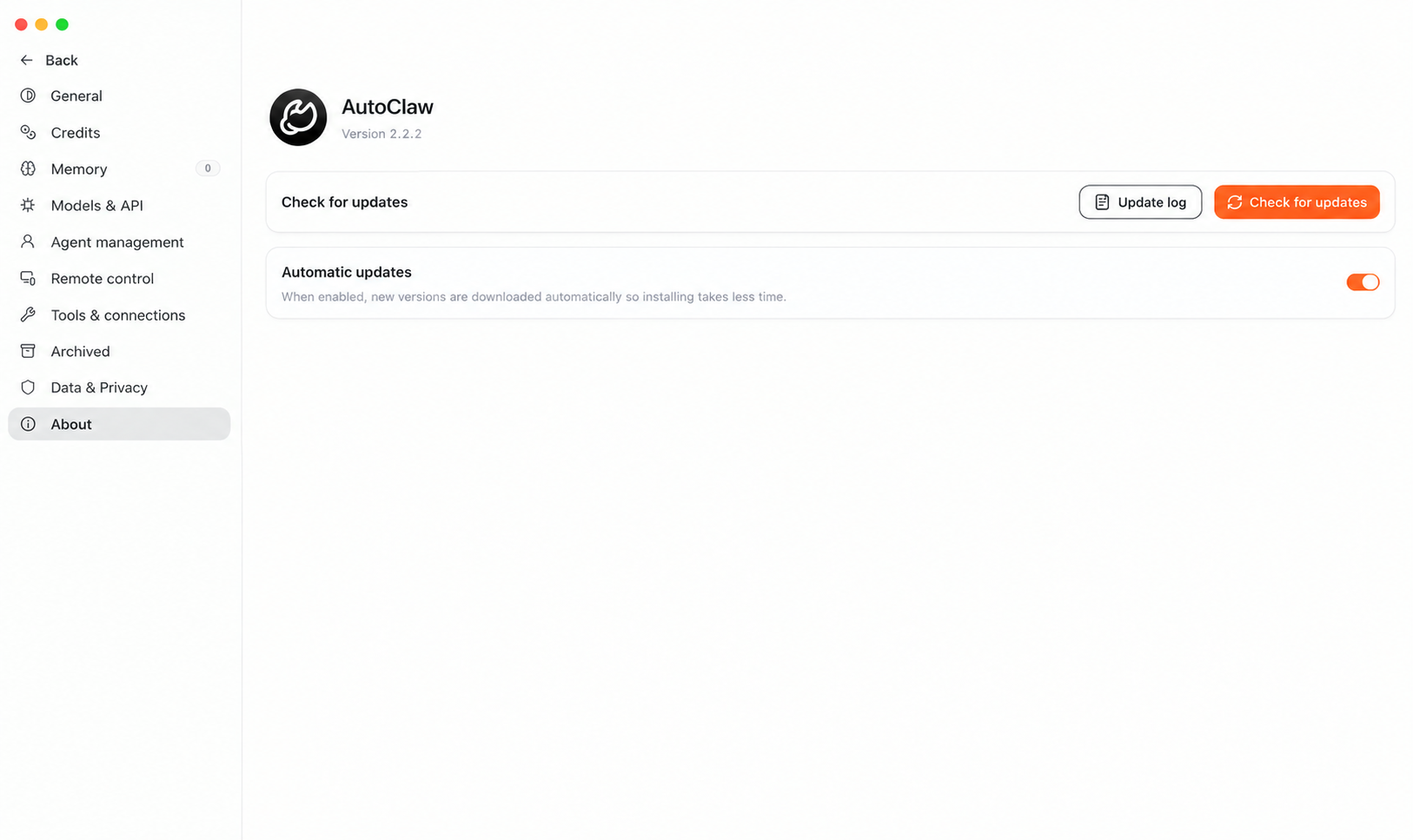
- Click your avatar in the lower-left corner, choose Settings, then open About to check the current version, and turn on automatic updates if needed.
If the page is blank or feature entries do not appear after launch, quit and reopen the app, then go to the "About" page and click "Check for updates." If the download fails on a corporate network or behind a proxy, switch networks and try again.
Update the desktop app
Go to "Settings → About" to view the current version, changelog, and available updates. We recommend keeping "Automatic updates" on. To confirm your version right away, click "Check for updates." Do not force-quit the app while an update is installing.