Task management
💡 This page explains how to create and switch tasks, and how to open existing tasks and continue them.
Basic task management features:
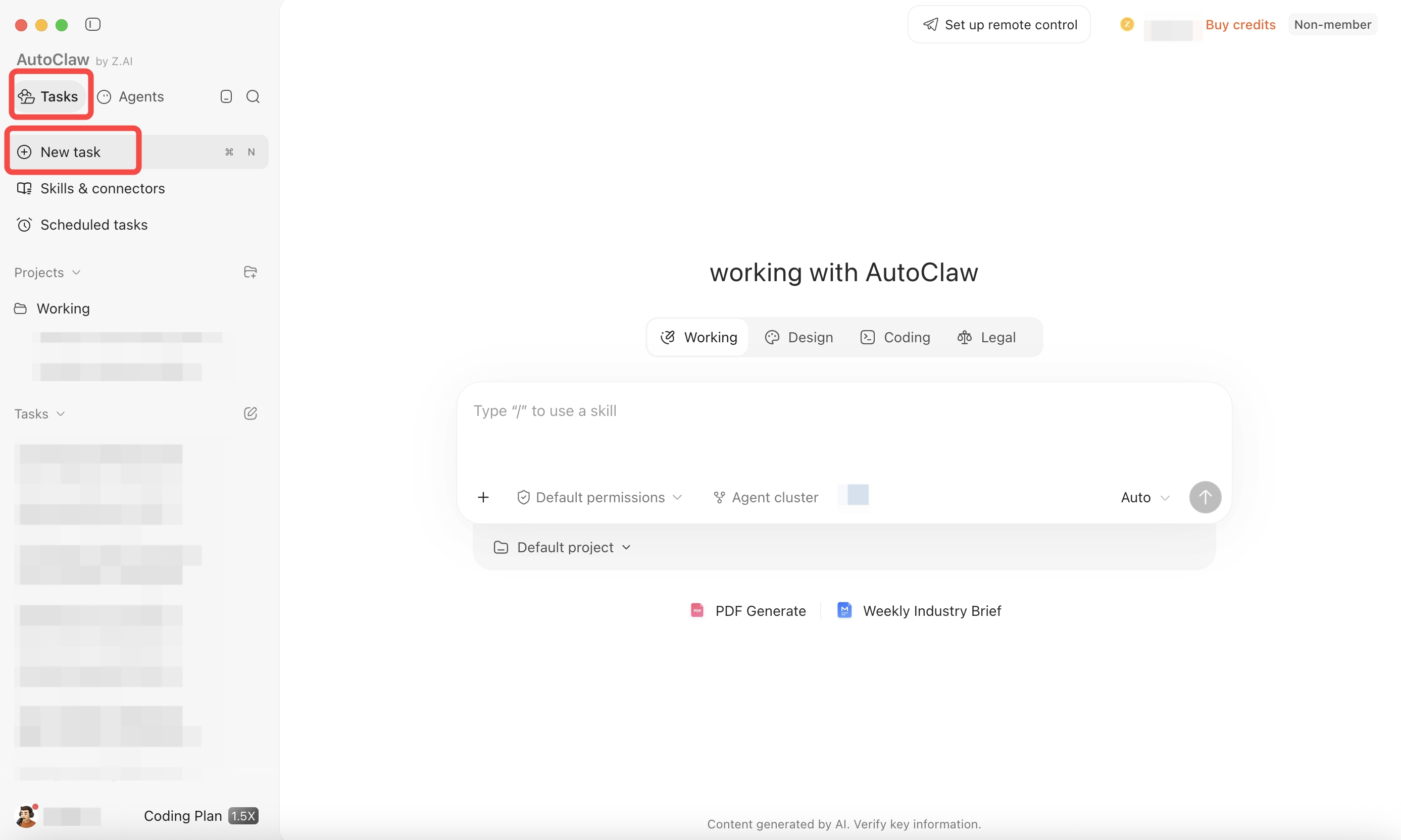
- New task: In the left sidebar, click + New task. If the sidebar is collapsed, click the new-task icon in the top bar.
- Switch tasks: In the left sidebar, select a past task to continue the conversation
- Projects: Use Projects in the left sidebar, or the project selector below the chat box, to attach a local project folder to your tasks. Click "…" next to a project to pin it, edit it, or remove it from AutoClaw (removing a project does not delete files on your computer).
Open an existing task
AutoClaw saves your conversations and running tasks in the left sidebar. The Tasks tab lists them by project; the Agents tab lists the same tasks grouped by Agent. After you reopen a task, you can view the conversation history, add requirements, and have the Agent continue in the original context.
- Expand the left sidebar and make sure the "Tasks" tab at the top is selected.
- Under the relevant project (or in the Tasks list), find the task you want to continue. To browse by Agent, switch to the Agents tab.
- Click the task name. The conversation history and existing outputs of that task open on the right.
- Enter new requirements in the chat box at the bottom and send them to continue working on the original task.
- If you have many tasks, scroll the list or use Search at the top of the sidebar to find an earlier one.
💡 Continue asking follow-up questions in the original task when possible, which preserves the existing context and deliverables. Click "New task" to create a separate task only when your goal changes significantly.